How to Sign in to ExpertOption
Writen By

Online Trading Platform Researcher and Guide Writer
Researches broker platforms and trading account Systems.
ExpertOption is a globally recognized online trading platform that empowers users to trade in financial markets with ease and flexibility. After signing up, accessing your ExpertOption account is crucial for managing trades, tracking performance, and staying informed in real time
Whether you're logging in from a desktop or mobile device, signing in is quick and secure. This guide will walk you through how to sign in to ExpertOption and ensure smooth access to your trading dashboard.
Whether you're logging in from a desktop or mobile device, signing in is quick and secure. This guide will walk you through how to sign in to ExpertOption and ensure smooth access to your trading dashboard.

How to Sign in to the ExpertOption Account
- Go to the ExpertOption mobile app or Website.
- Click on “Login”.
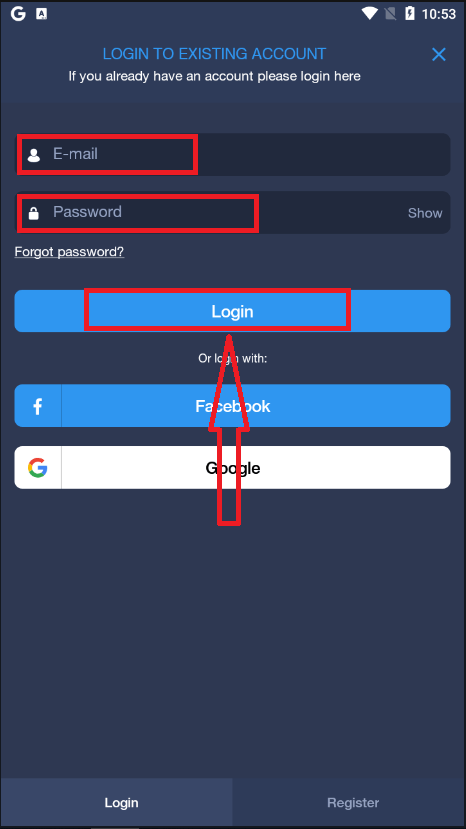
- Enter your email and password.
- Click on the “Log in” blue button.
- If you forgot your email, you can log in using “Google” or “Facebook”.
- If you forgot your password, click on “Forgot Password”.
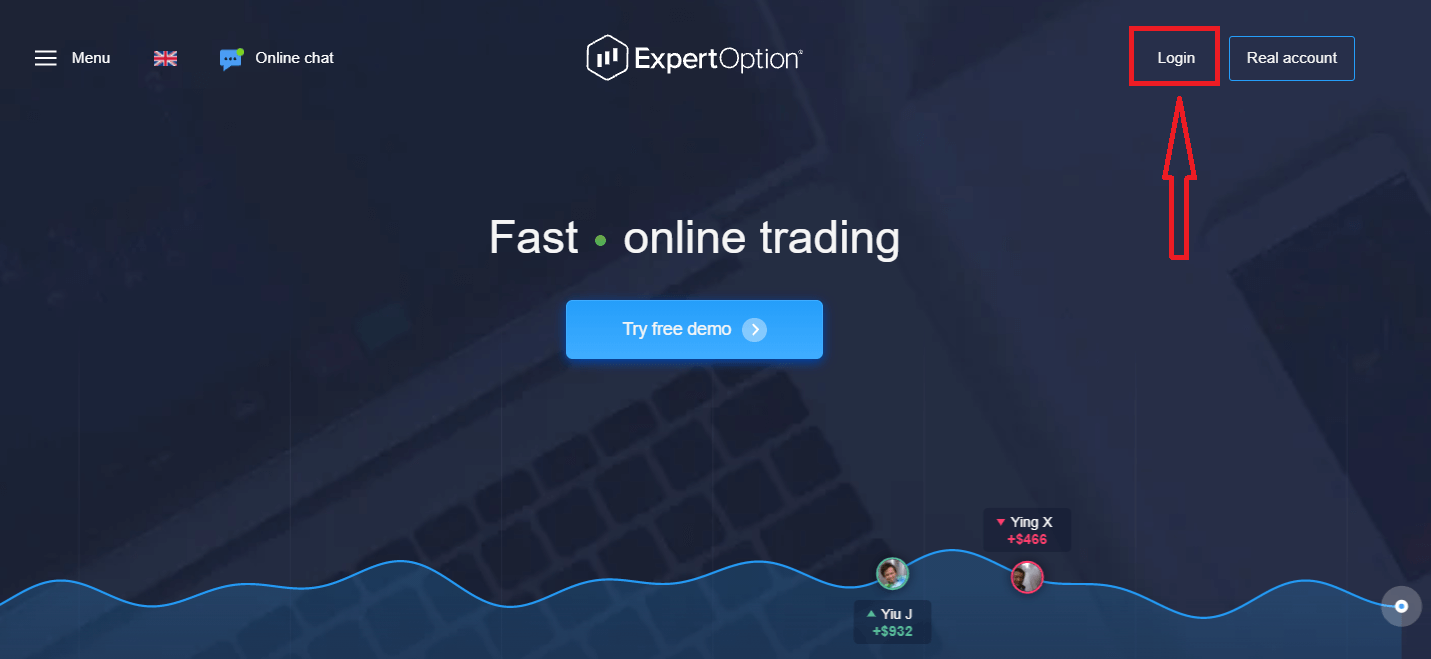
Click "Login", and a sign-in form will appear.
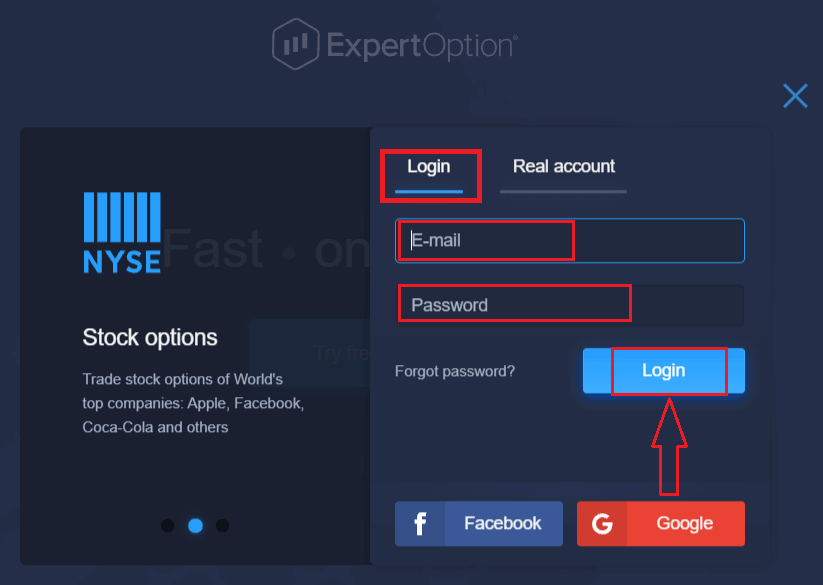
Enter your email address and password that you registered to log into your account with, and click the "Login" button.
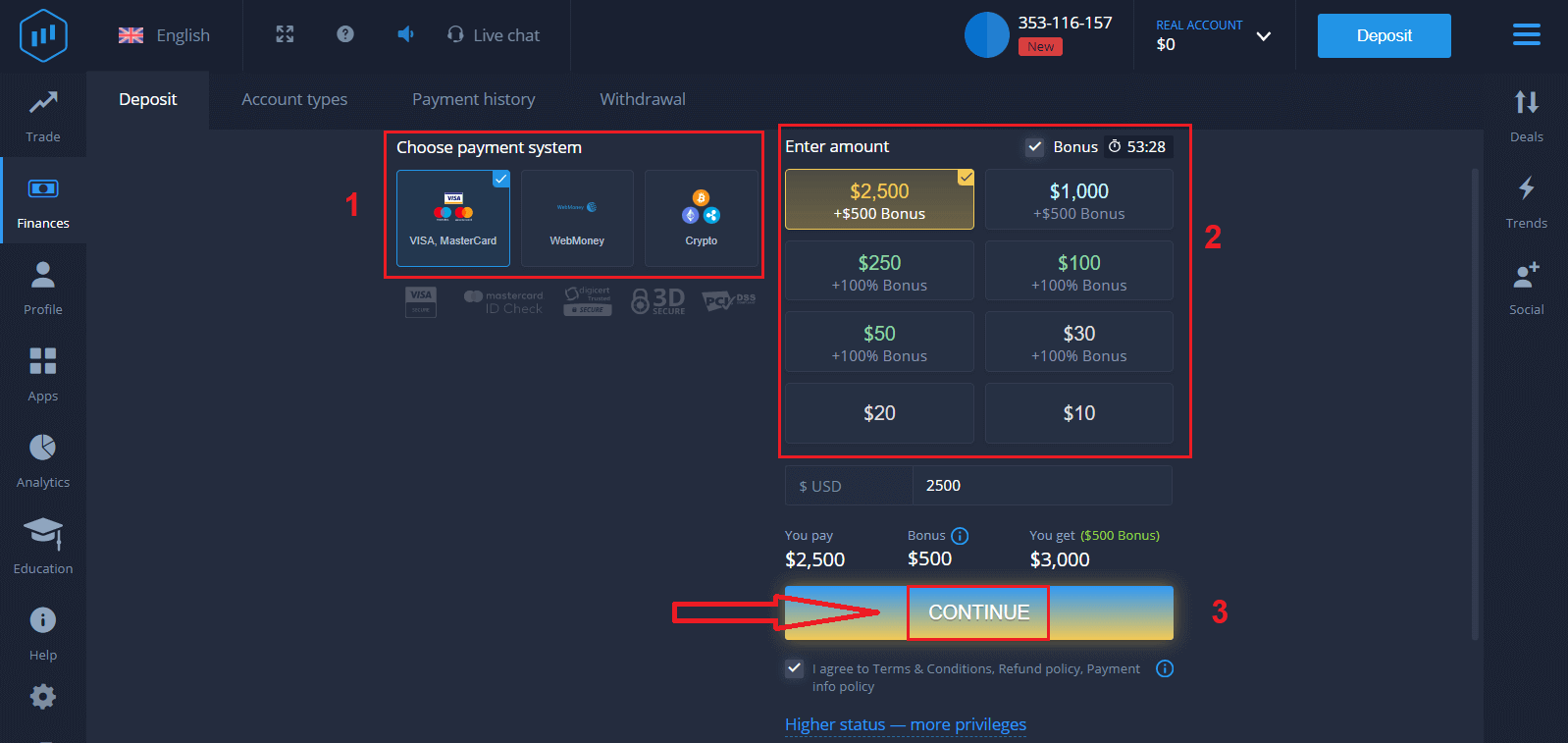
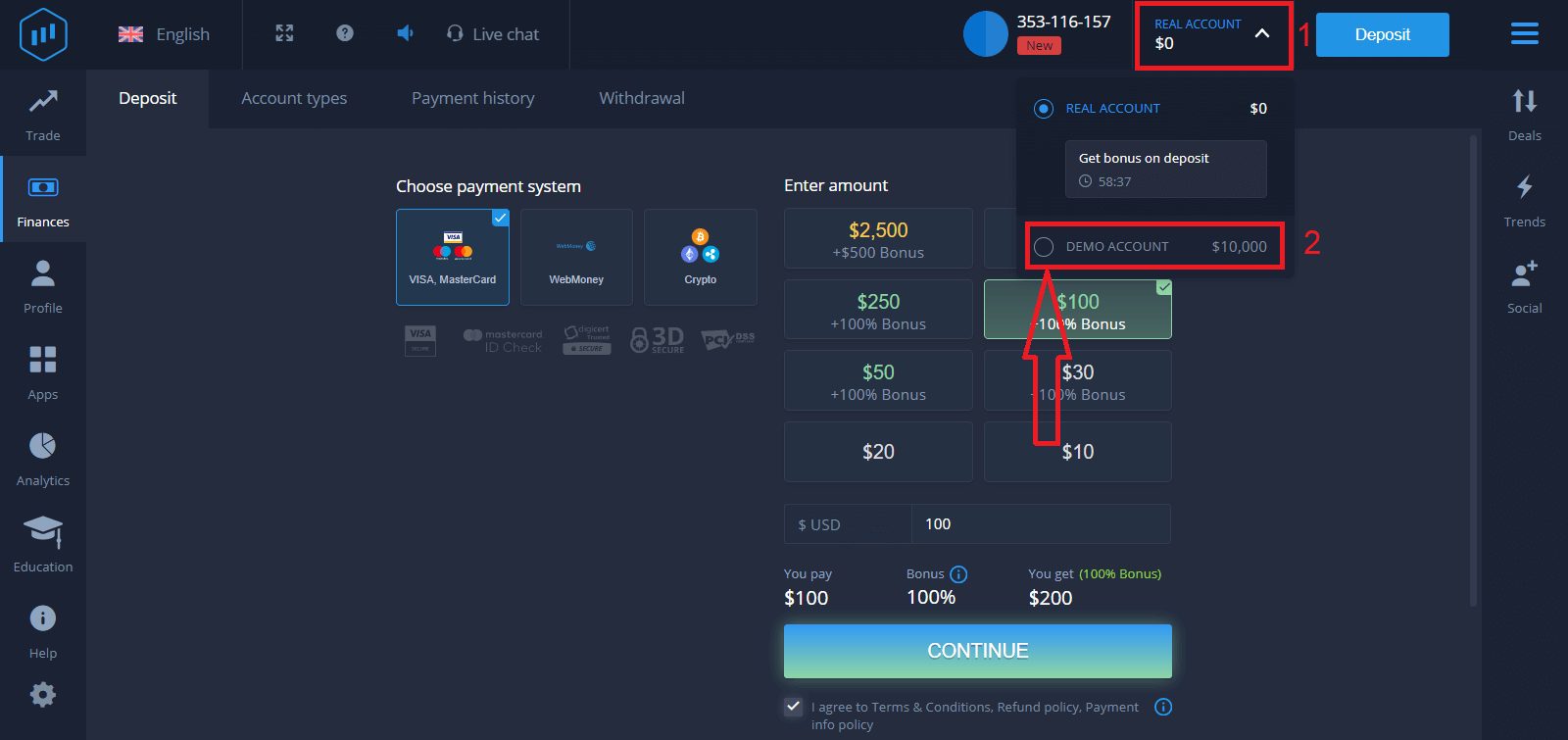
After logging in successfully, you will see the Deposit page as shown below. To start Live trading, you have to make an investment in your account (The minimum deposit is 10 USD).
How to make a Deposit in ExpertOption
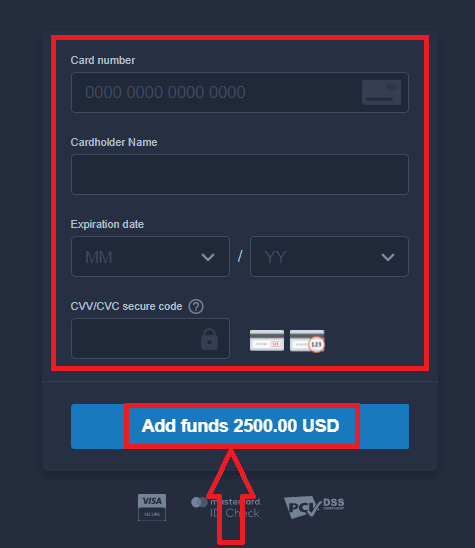
Enter the card data and click "Add funds ..."
Now you can trade on a real account after depositing successfully.
If you want to use the Demo Account, click "REAL ACCOUNT" and select "DEMO ACCOUNT" to start trading with $10,000 in the Demo Account. A demo account is a tool for you to get familiar with the platform, practice your trading skills on different assets, and try out new mechanics on a real-time chart without risks.
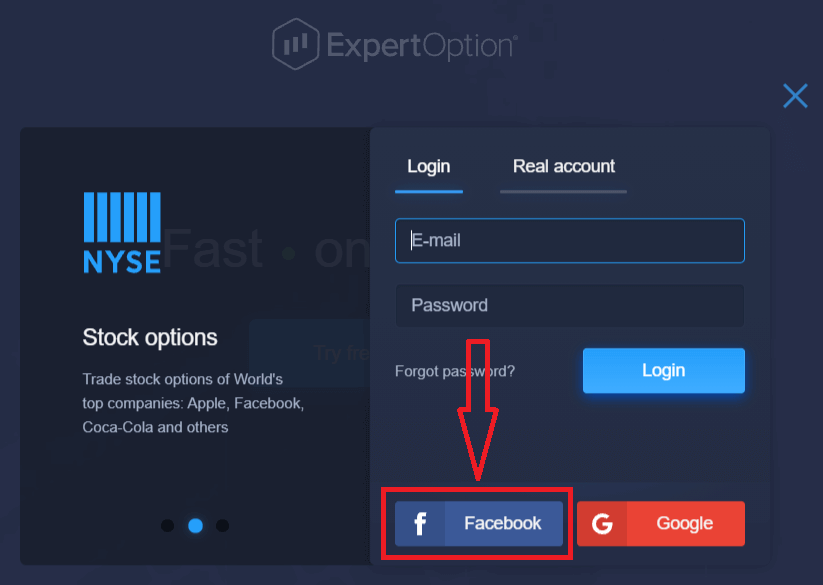
How to Sign in to ExpertOption using Facebook
You can also log in to the website using your personal Facebook account by clicking on the Facebook button.1. Click on the Facebook button
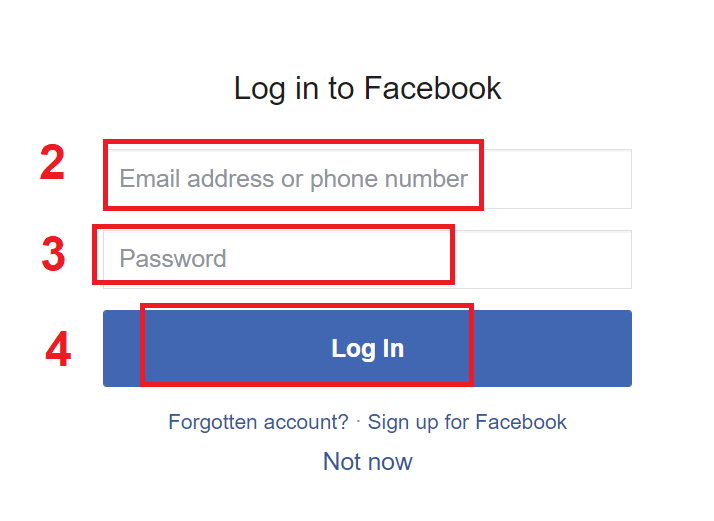
2. The Facebook login window will be opened, where you will need to enter your email address that you used to register on Facebook
3. Enter the password from your Facebook account
4. Click on “Log In.”
Once you’ve clicked on the “Log in” button, ExpertOption will request access to: Your name and profile picture, and email address. Click "Continue..."
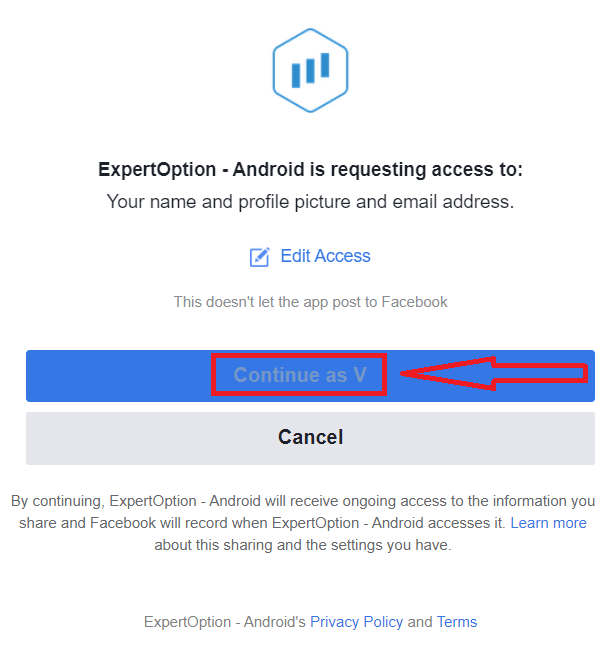
After that, you will be automatically redirected to the ExpertOption platform.
How to Sign in to ExpertOption using Google
1. For authorization through your Google account, you need to click on the Google button.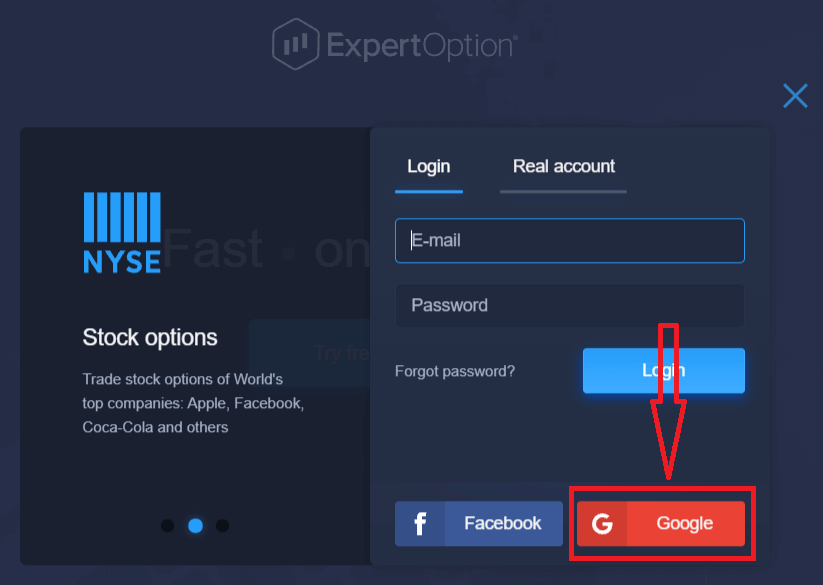
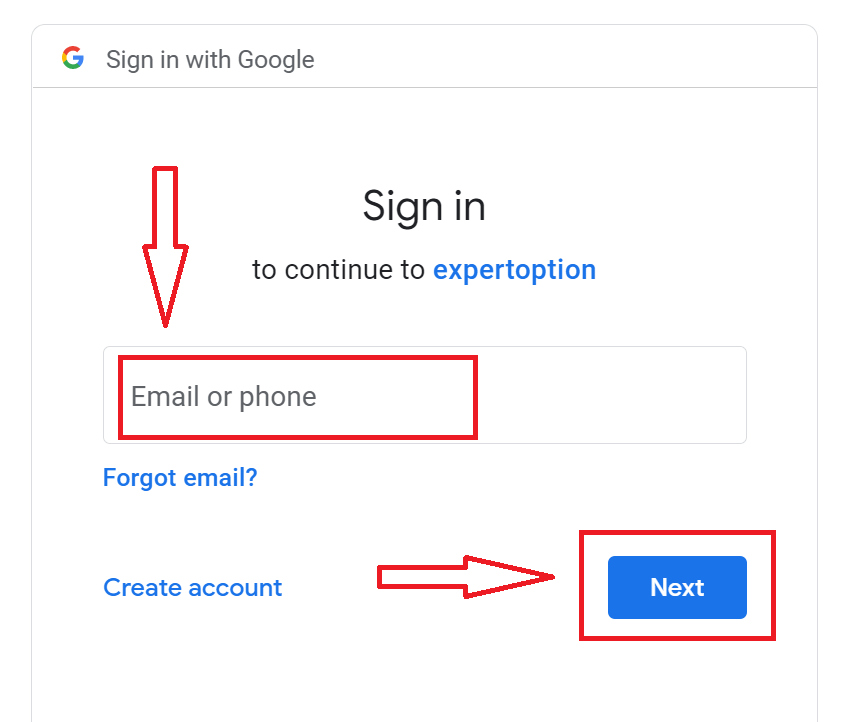
2. Then, in the new window that opens, enter your phone number or email and click “Next”. The system will open a window, and you will be asked for the password for your Google account.
3. Then enter the password for your Google account and click “Next”.
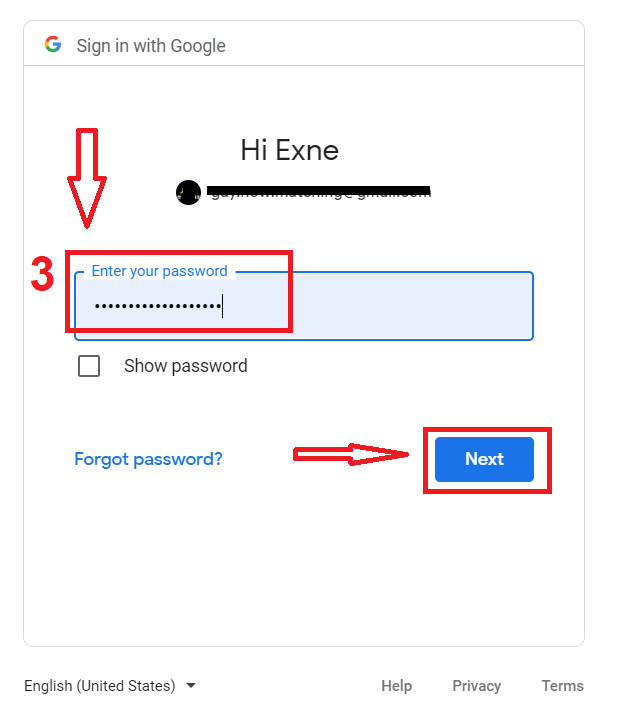
After that, follow the instructions sent from the service to your email address. You will be taken to your personal ExpertOption account.
Recover Your ExpertOption Account Password
Don’t worry if you can’t log into the platform; you might just be entering the wrong password. You can come up with a new one.If you use the web version
To do that, click the "Forgot Password" link.
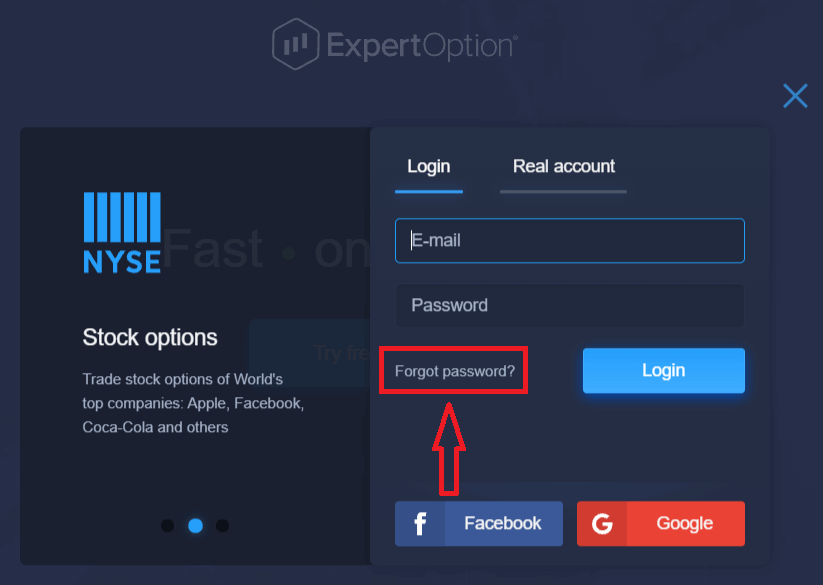
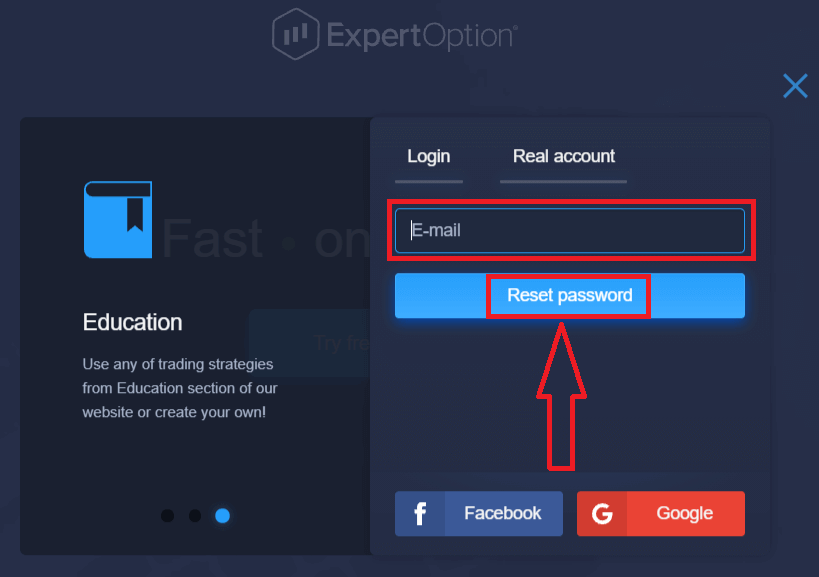
Then, the system will open a new form where you will be requested to restore your password for your ExpertOption account. You need to provide the system with the appropriate email address and click "Reset Password."
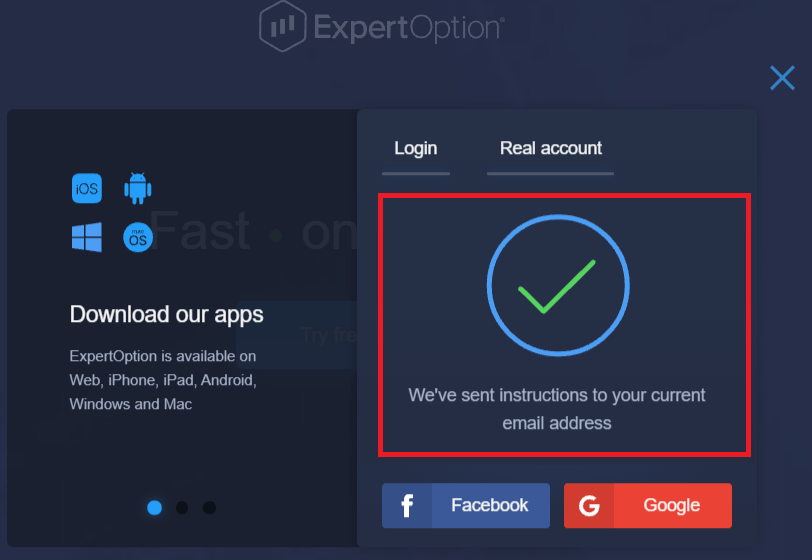
A notification will open that an email has been sent to this email address to reset the password.
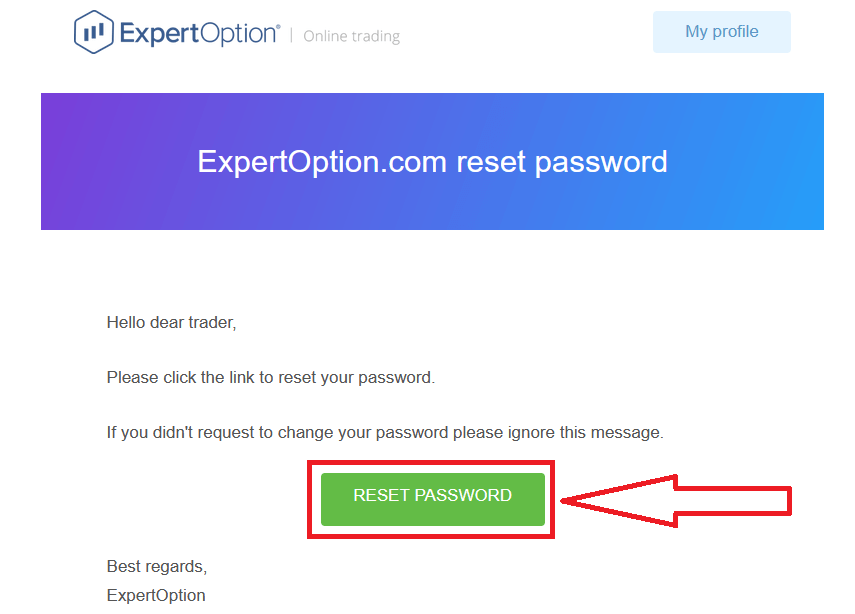
Further in the letter in your email, you will be offered to change your password. Click on the «Reset Password»
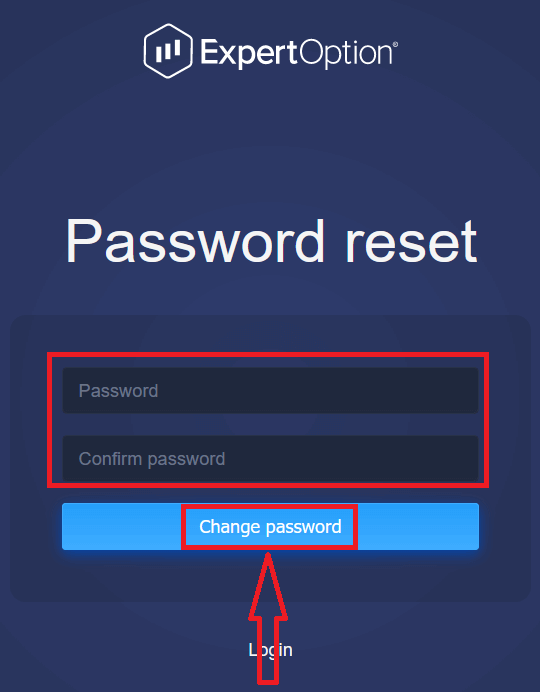
The link from the email will lead you to a special section on the ExpertOption website. Enter your new password here twice and click the "Change password" button
After entering "Password" and "Confirm password". A message will appear indicating that the password has been changed successfully.
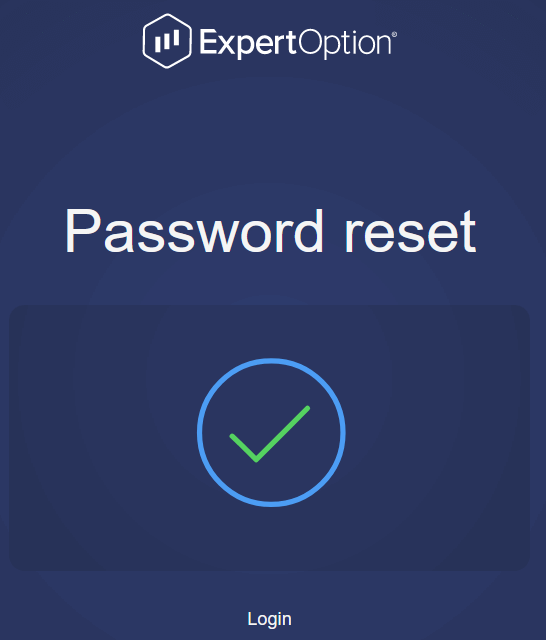
That’s it! Now you can log into the ExpertOption platform using your username and new password.
If you use the mobile application
To do that, click the "Menu" icon
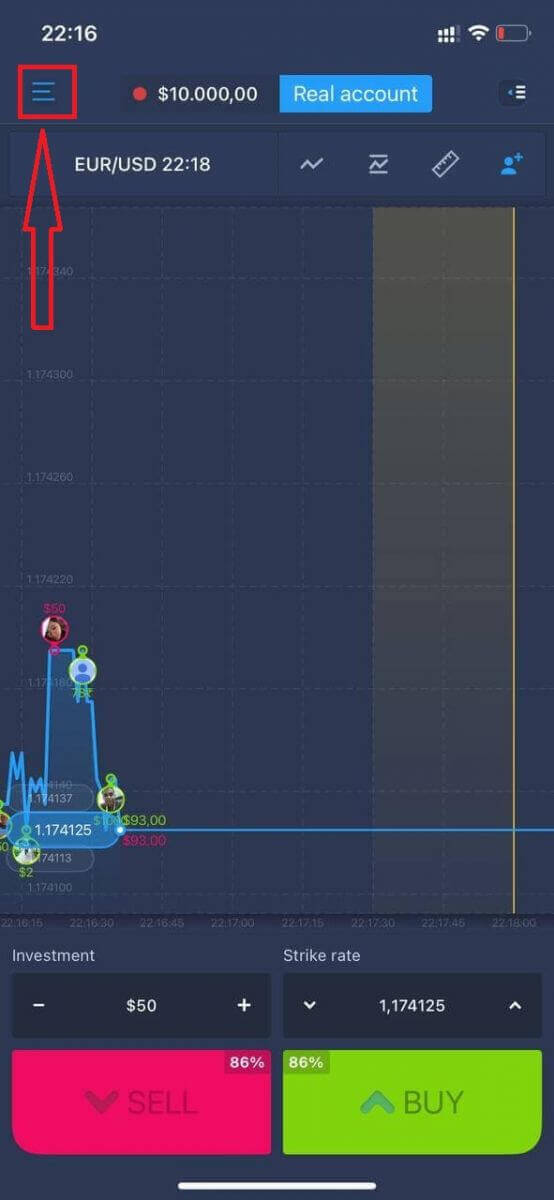
Click "Login."
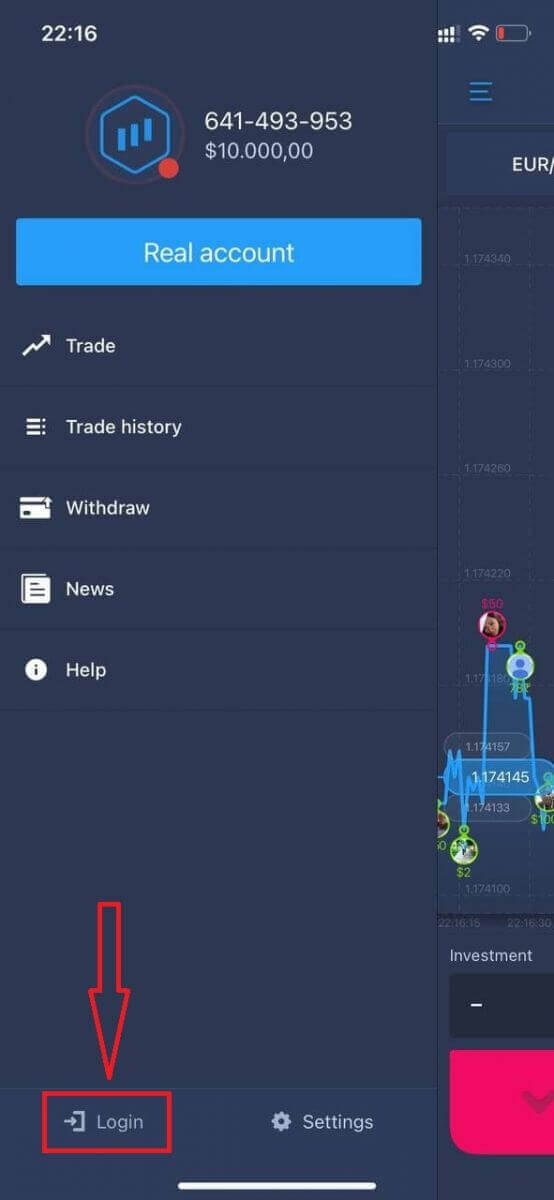
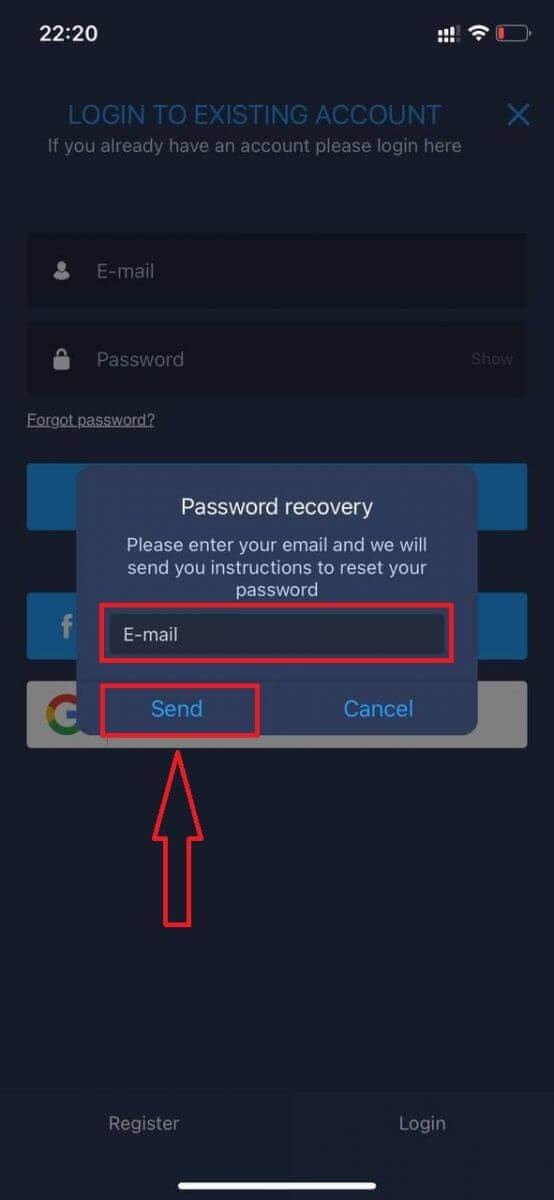
Click on the "Forgot password" link
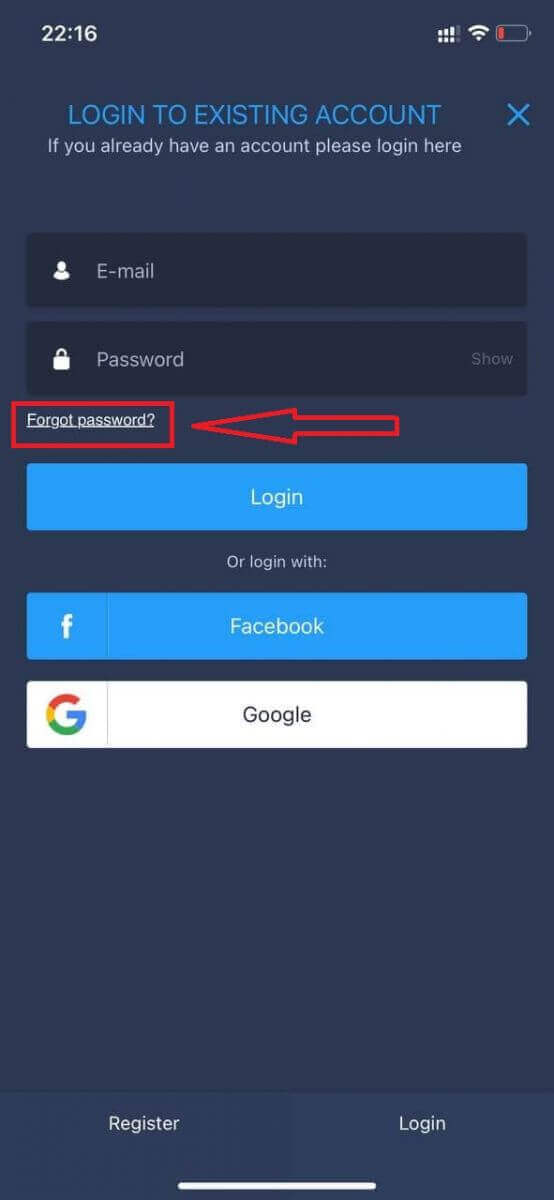
In the new window, enter the email you used during sign-up and click the "Send" button. Then do the same remaining steps as the web app
Sign in to ExpertOption Mobile Web
If you want to trade on the mobile web version of the ExpertOption trading platform, you can easily do it. Initially, open up your browser on your mobile device. After that, search for “expertoption” and visit the official website of the broker.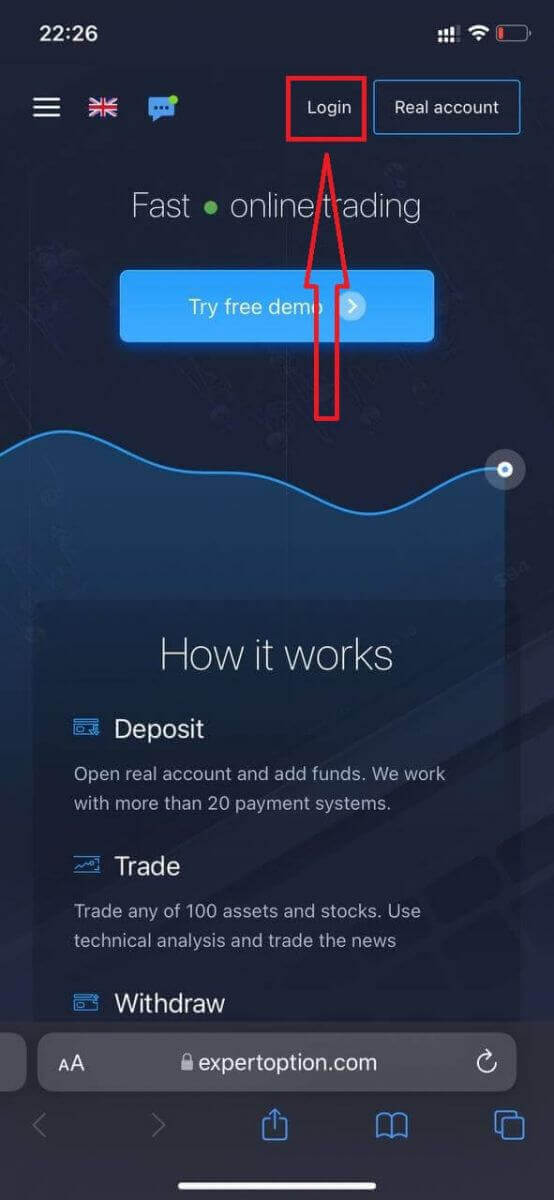
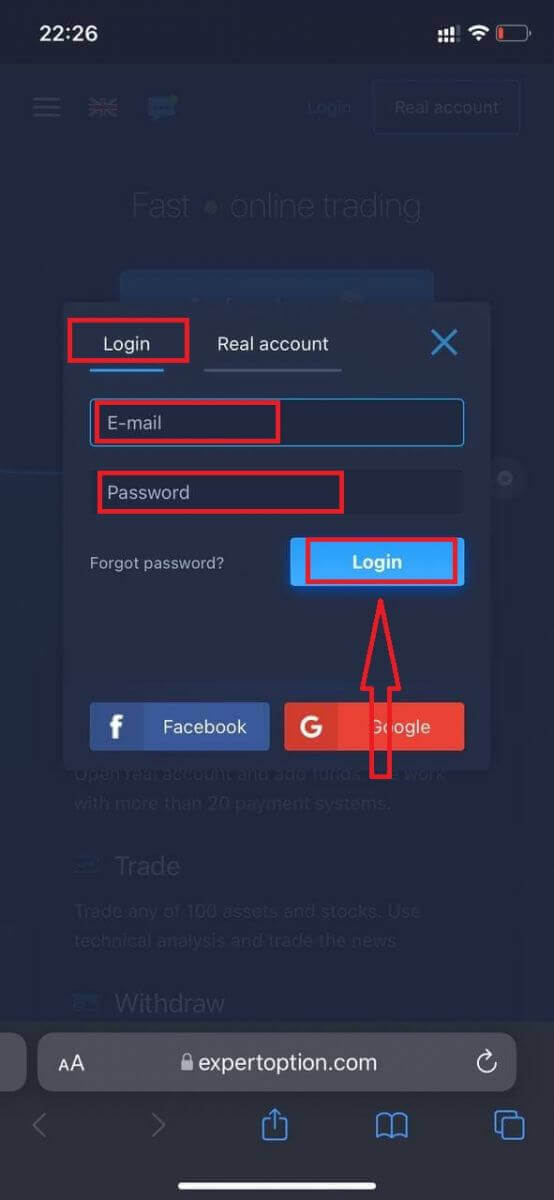
Enter your email and password, and then click on the “Login” button.
After logging in successfully, you will see the Deposit page. To start Live trading, you have to make an investment in your account (The minimum deposit is 10 USD).
How to make a Deposit in ExpertOption
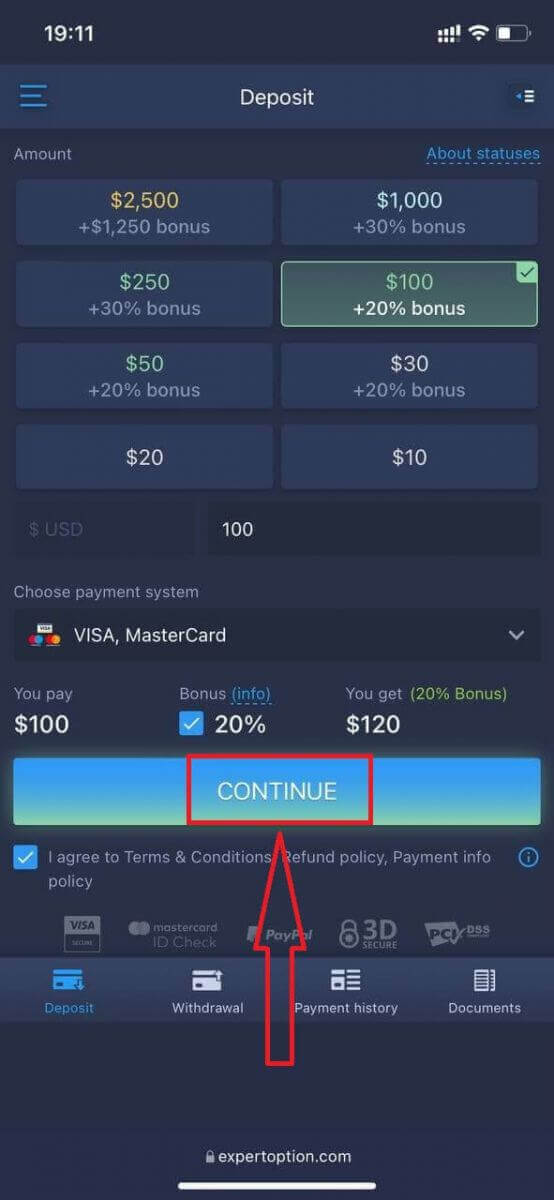
Enter the card data and click "Add funds ..."
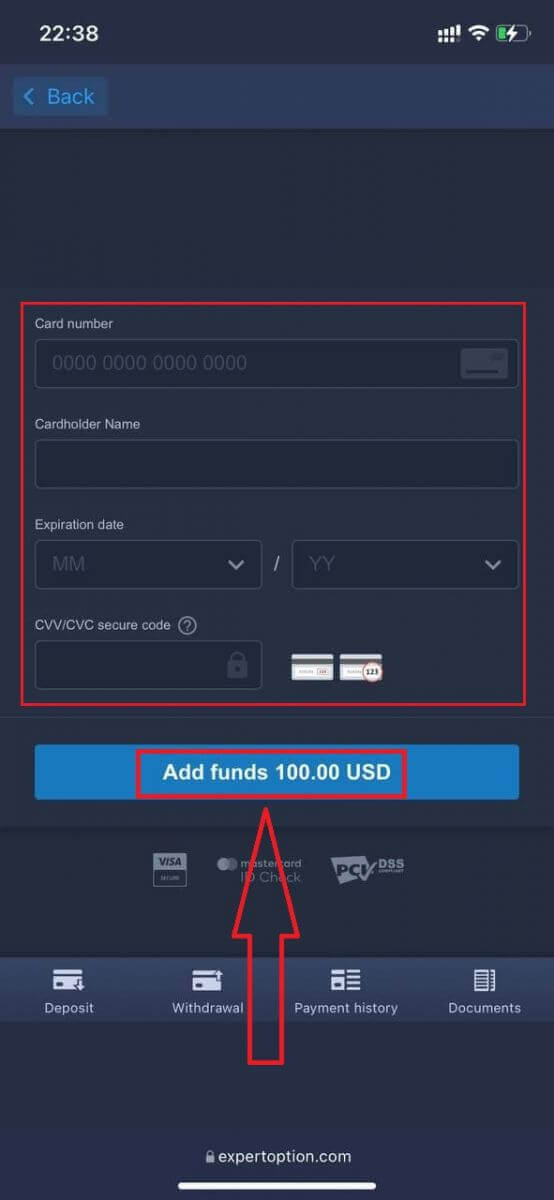
Now you can trade on a real account after depositing successfully.
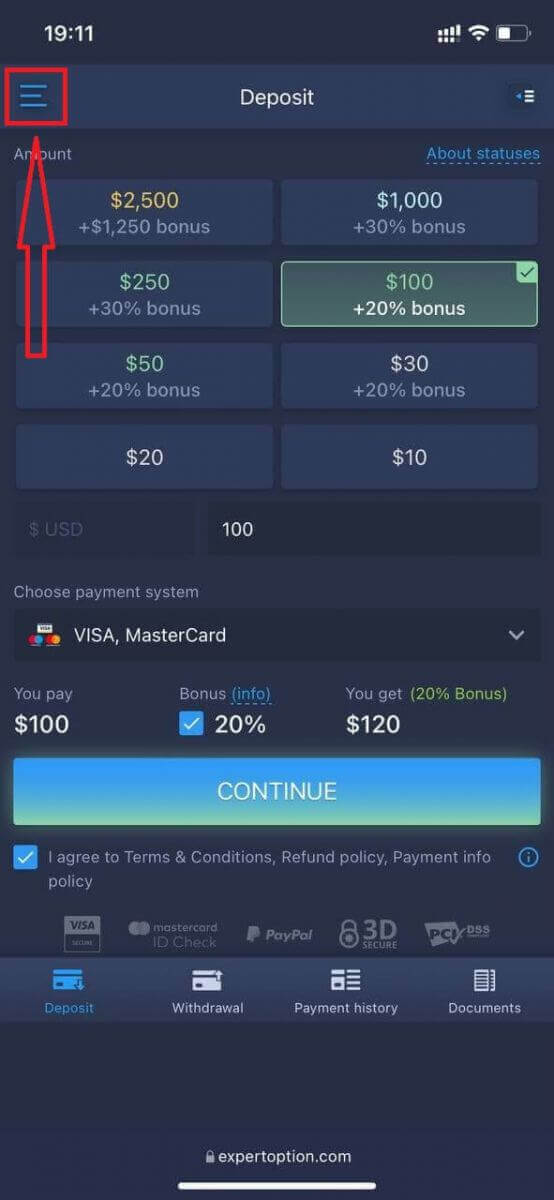
If you want to use the Demo Account, click the "Menu" icon.
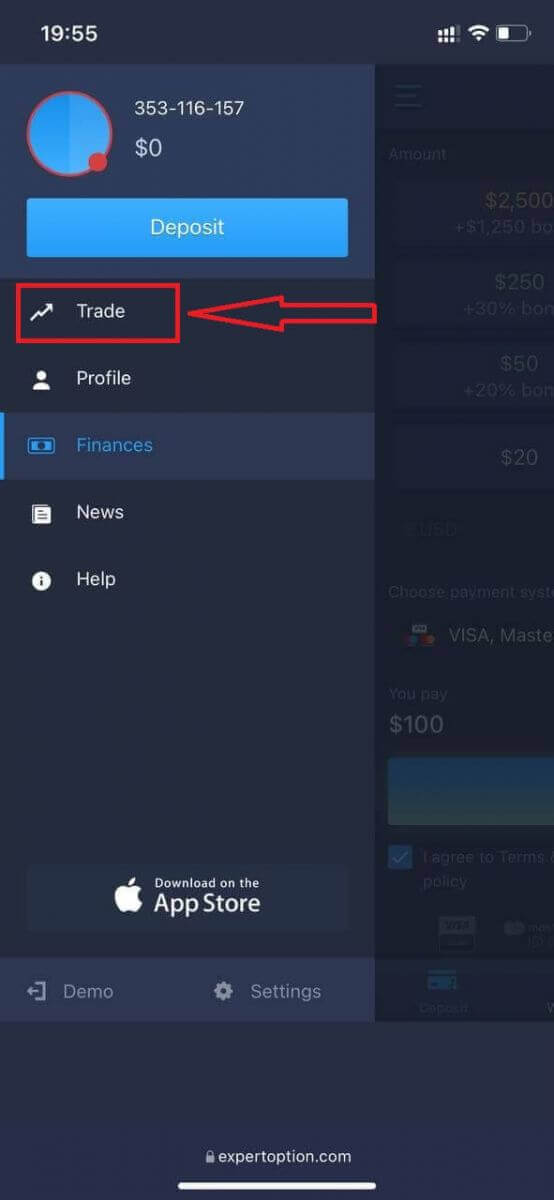
Click "Trade."
Switch accounts from the Real account to the Demo account.
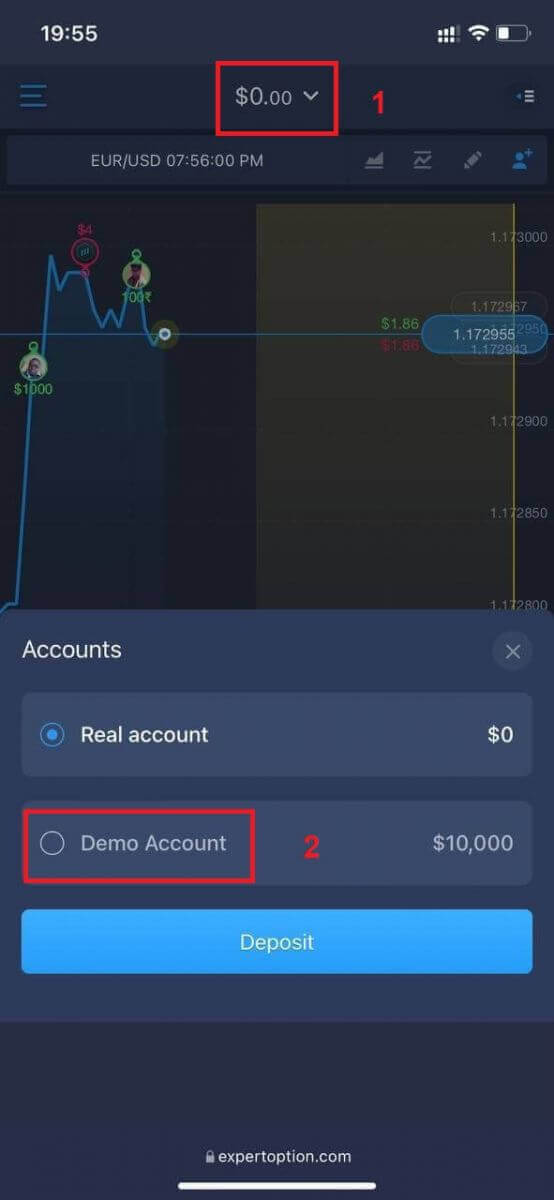
You will have $10,000 in the Demo account.
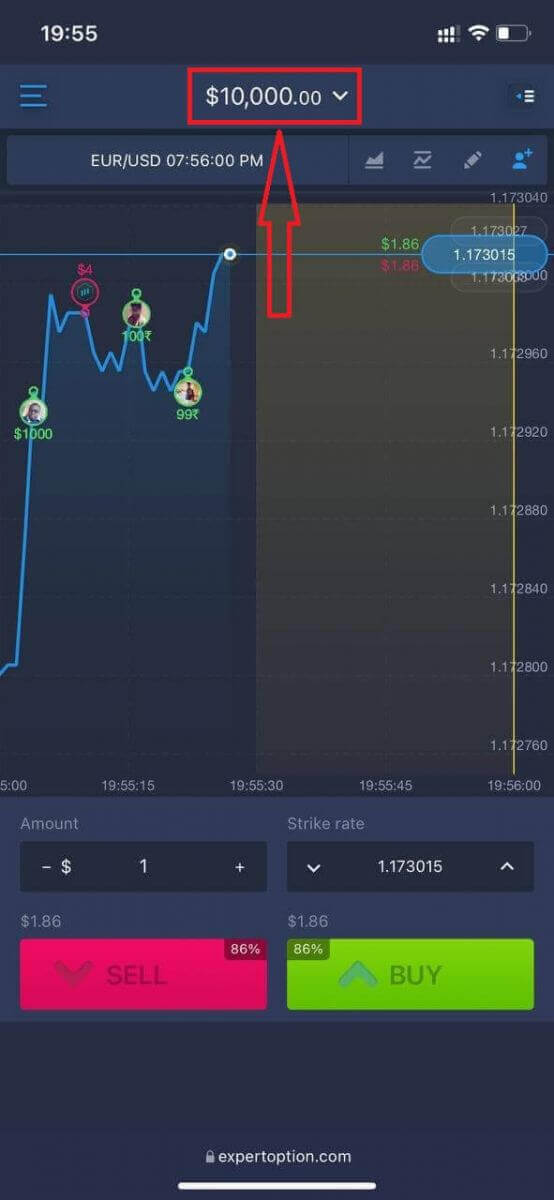
Now you can trade from the mobile web version of the platform. The mobile web version of the trading platform is exactly the same as the regular web version. Consequently, there won’t be any problems with trading and transferring funds.
How to Sign in to the ExpertOption iOS App
Logging in on the iOS mobile platform is similar to logging in on the ExpertOption web app. The application can be downloaded through the App Store on your device, or click here. Simply search for “ExpertOption - Mobile Trading” app and click «GET» to install it on your iPhone or iPad.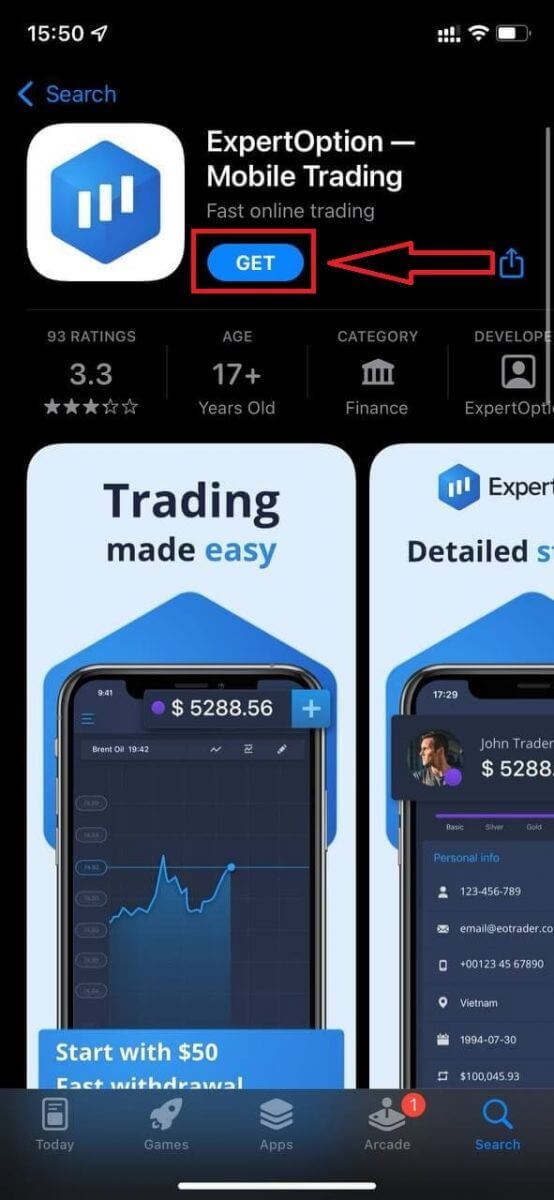
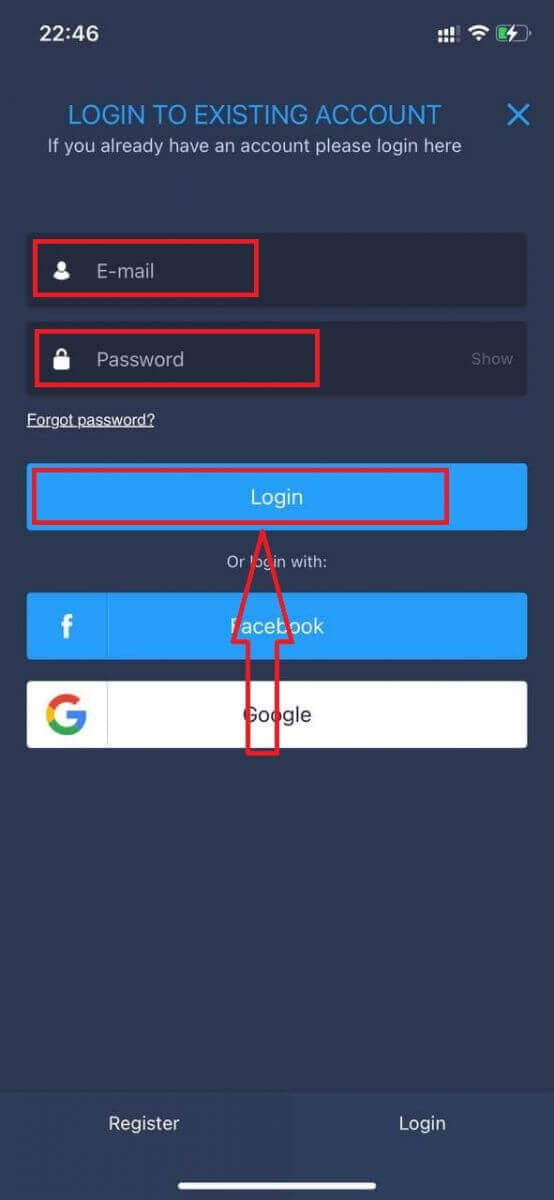
After installation and launching, you may log in to the ExpertOption iOS mobile app by using your email, Facebook, or Google. You just need to choose the "Menu" icon.
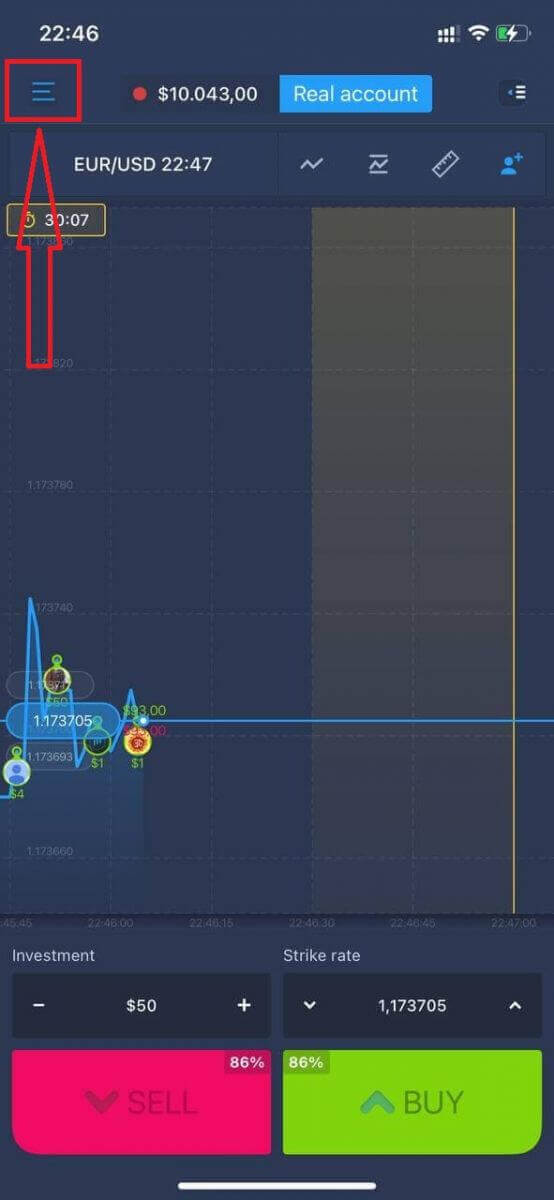
Click "Login."
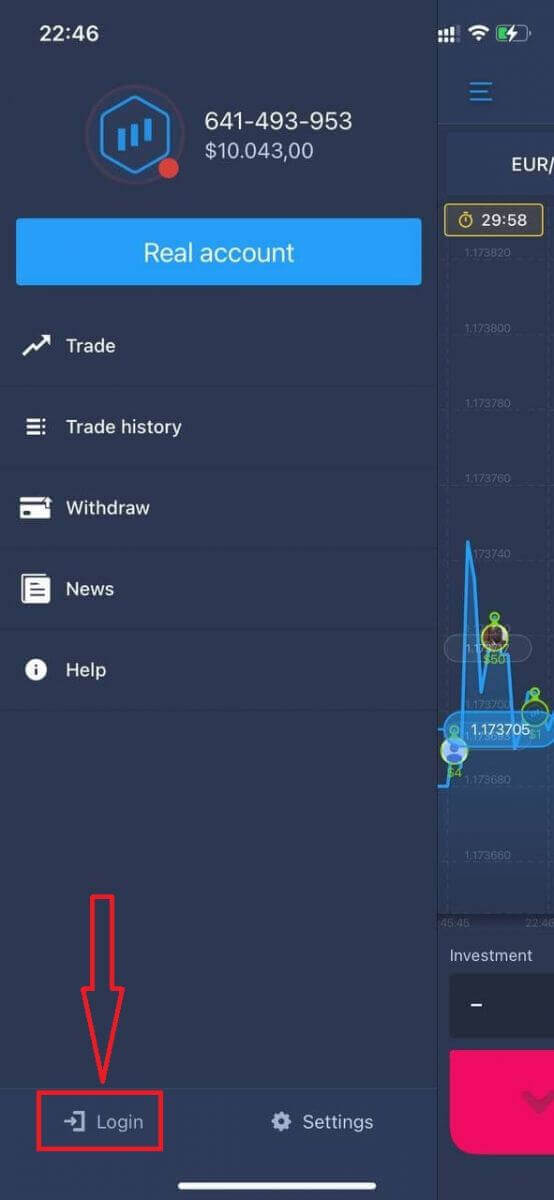
Enter your email and password, and then click on the “Login” button.
How to Sign in to the ExpertOption Android App
You have to visit the Google Play store and search for "ExpertOption - Mobile Trading" to find this app, or click here.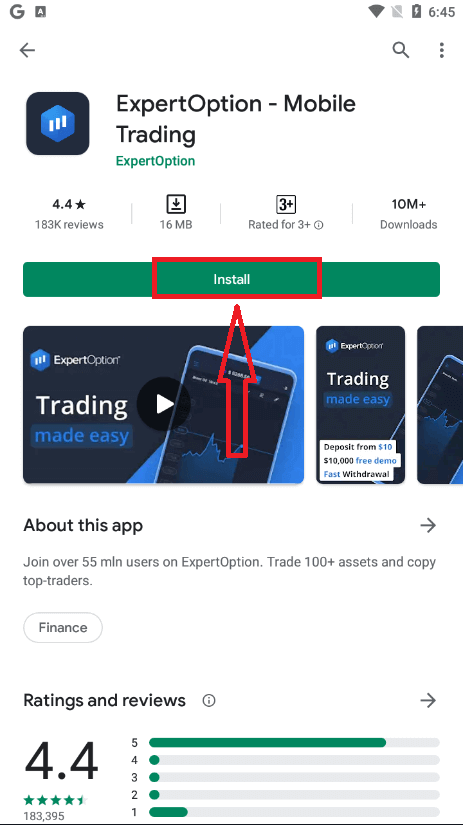
After installation and launching, you may log in to the ExpertOption Android mobile app by using your email, Facebook, or Google account.
Do the same steps as on an iOS device, choose the "Menu" icon.
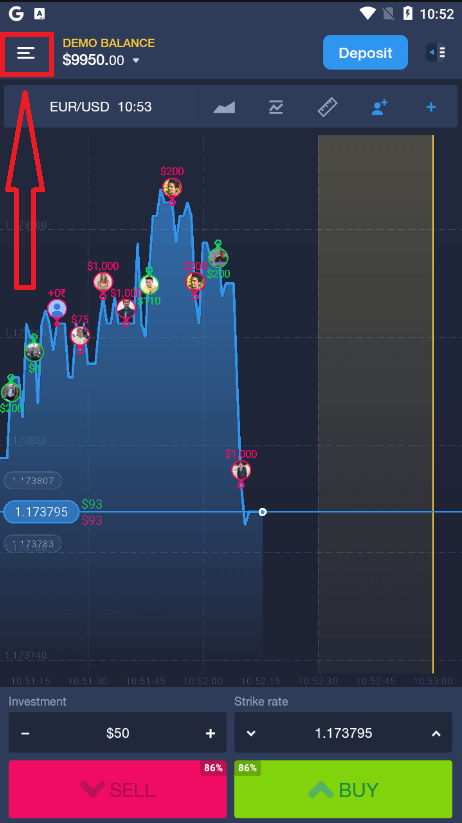
Click "Login."
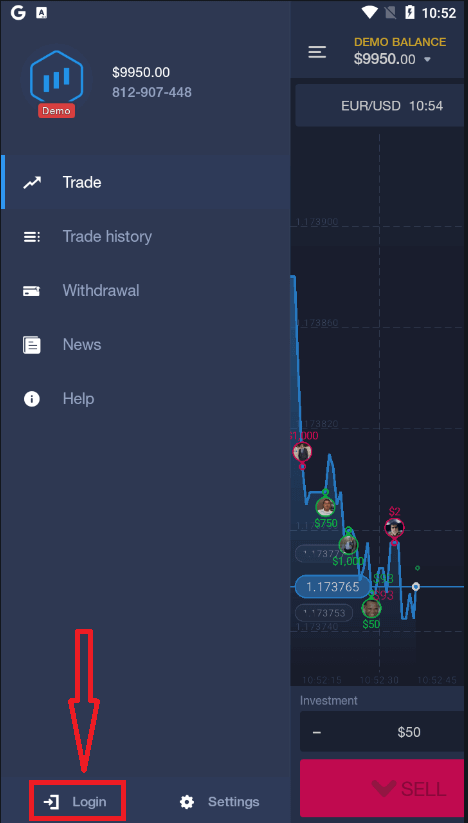
Enter your email and password, and then click on the “Login” button.
Conclusion: Secure Access is the First Step Toward Smarter Trading on ExpertOption
Logging into ExpertOption is more than just entering your credentials—it’s the first action you take toward gaining control of your financial future. A smooth and secure login process ensures that you’re always ready to respond to market changes, make informed decisions, and manage your investments efficiently.
By following the right steps and practicing good security habits, such as enabling two-factor authentication and using official login channels, you protect both your assets and your trading experience. Whether you’re checking your portfolio or making real-time trades, every successful trading session starts with a safe login.