How to Withdraw and make a Deposit Money on ExpertOption

ExpertOption is a globally trusted online trading platform, offering a seamless experience for trading forex, cryptocurrencies, stocks, and commodities. To fully utilize the platform, it is essential to know how to deposit funds securely to start trading and how to withdraw your profits efficiently.
This guide will walk you through the step-by-step process of depositing and withdrawing money on ExpertOption, ensuring your transactions are smooth and secure.

How to Withdraw Money from ExpertOption
Which Payment Methods are available for Withdrawal on ExpertOption
We work with more than 20 payment systems. You can transfer money to your debit or credit card: Visa, MasterCard, Maestro, UnionPay. We are integrated with electronic payment methods as well: Neteller, Skrill, Perfect Money, FasaPay, and others.Gold, Platinum, and Exclusive accounts have priority withdrawal.
First withdrawals have to be made to an account card or e-wallet that was used for making a deposit. In case of withdrawal, to bank card amount of withdrawal has to be equal to the deposit amount. Other funds (revenue) you can withdraw to any e-wallet (Skrill, Neteller, UnionPay, or any other method)
How can I Withdraw Money from ExpertOption
First, let’s clarify a small point. It may seem ridiculous or stupid to some, but we receive many similar questions every day. Money can be withdrawn ONLY from a real account; a demo account is, in fact, a simulation profile on which you can practice making money using the ExpertOption platform. Therefore, at the very beginning, on a demo account, a very large $10,000 is available for trading.So, you have a real account, and you’ve topped up using a MasterCard bank card. Now you’ve earned a profit and want to withdraw your winnings. How can it be done?
Withdrawal has never been easier! Follow these steps:
1. Just open the ExpertOption platform and tap on the top left upper corner menu.
2. Then choose the Finances option. You’ll now see a Withdrawal option in the lower right corner of the window.
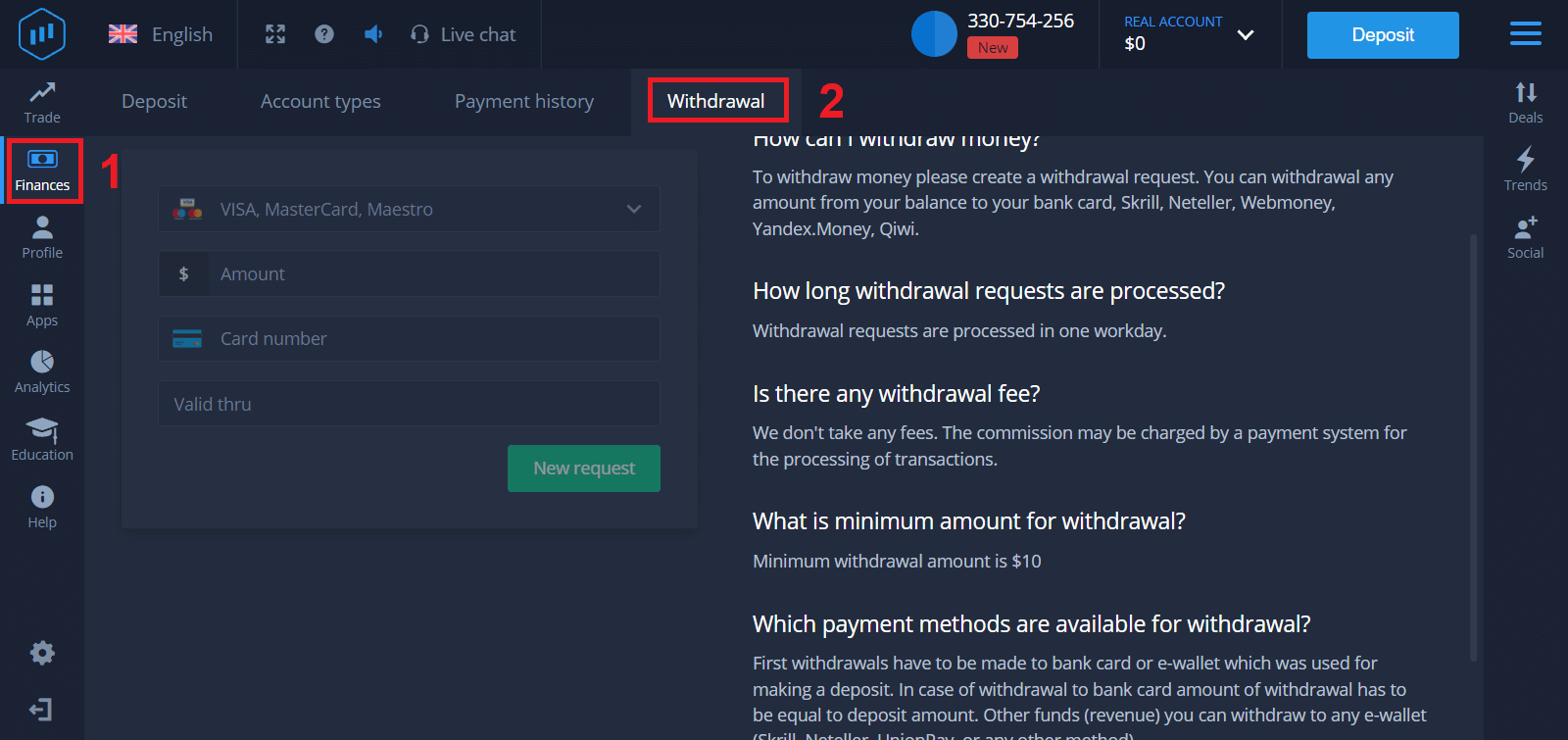
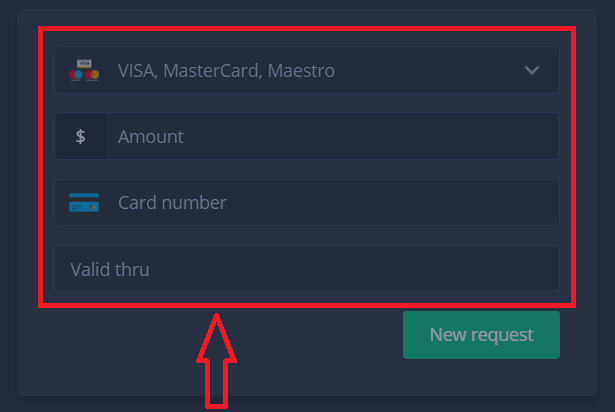
3. There, you should enter all the data of the payment method you wish to use for withdrawal
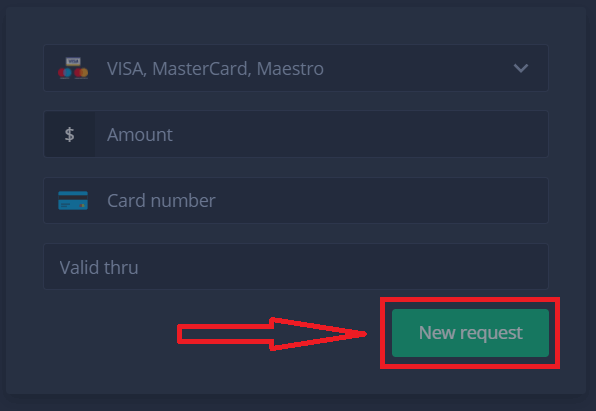
4. Once you’ve provided all the information in this field, press the “New request” button.
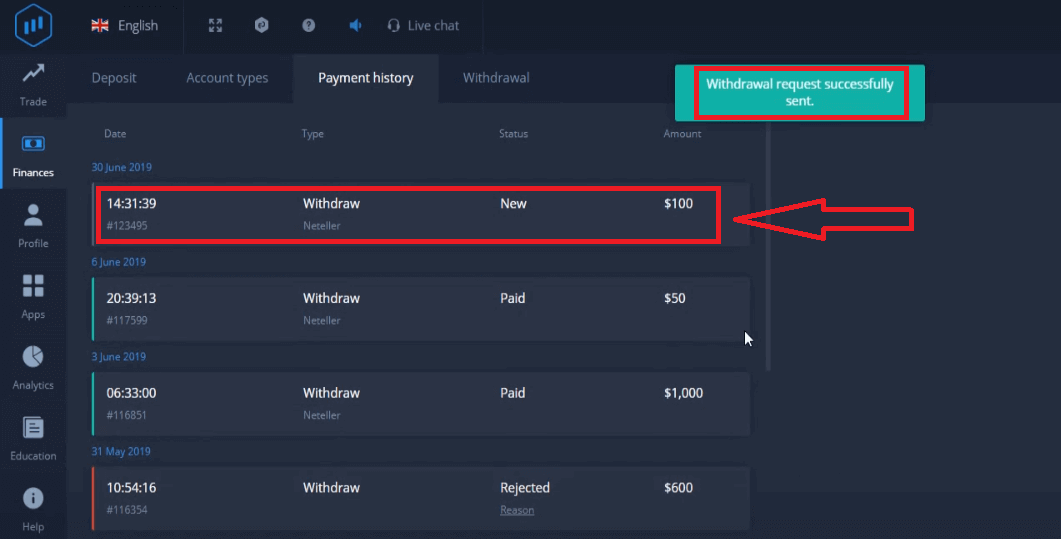
That’s it, your money is on its way to your credit card or other payment method. You will see the new request in "Payment history.y"
One more important thing!
In addition to the usual withdrawal methods - such as credit cards, there are dozens of other withdrawal ways in ExpertOption. But the first withdrawal is always available only (!) to the payment method you used for deposit.
Frequently Asked Questions (FAQ)
How long are withdrawal requests?
Withdrawal requests are processed in one workday.
Is there any withdrawal fee?
We don’t take any fees. The commission may be charged by a payment system for the processing of transactions.
What is the minimum amount for withdrawal?
Minimum withdrawal amount is $10How to Deposit Money on ExpertOption
How do I make a Deposit on ExpertOption
You are welcome to deposit using a debit or credit card (VISA, MasterCard), Internet Banking, an e-wallet like Perfect Money, Skrill, WebMoney, or Crypto.The minimum deposit is 10 USD. If your bank account is in a different currency, the funds will be converted automatically.
Many of our traders prefer using E-payments instead of bank cards because it’s faster for withdrawals.
And we have good news for you: We don’t charge any fees when you make a deposit.
Deposit on ExpertOption using Bank Cards (VISA/ MasterCard)
1. Visit the ExpertOption website or mobile app.2. Log in to your trading account.
3. Click on the “Finances” on the left upper corner menu and click "Deposit".
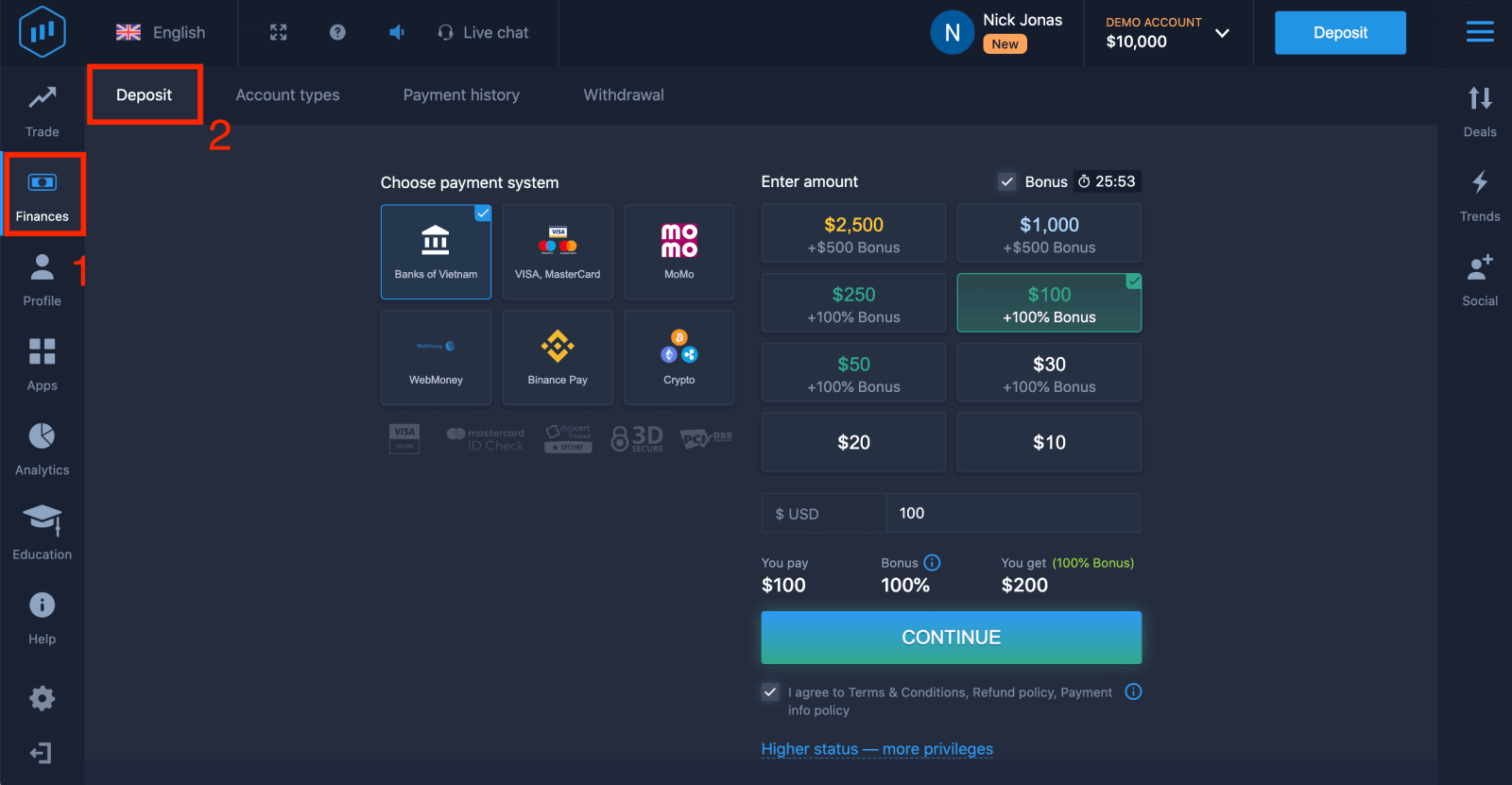
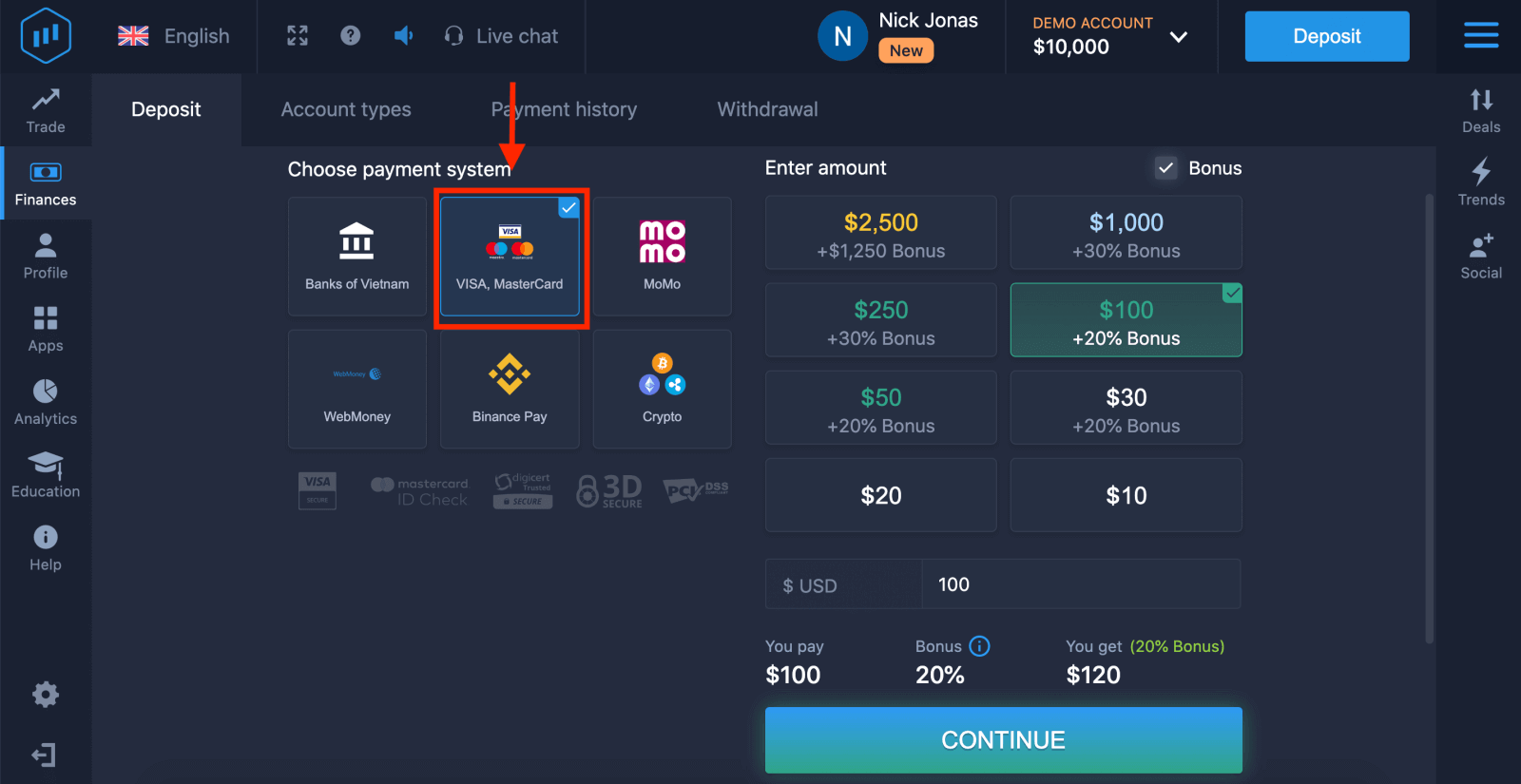
4. There are several ways to deposit funds into your account; you can make deposits via any debit or credit card. The card must be valid and registered in your name and support international online transactions. Select "VISA / MasterCard".
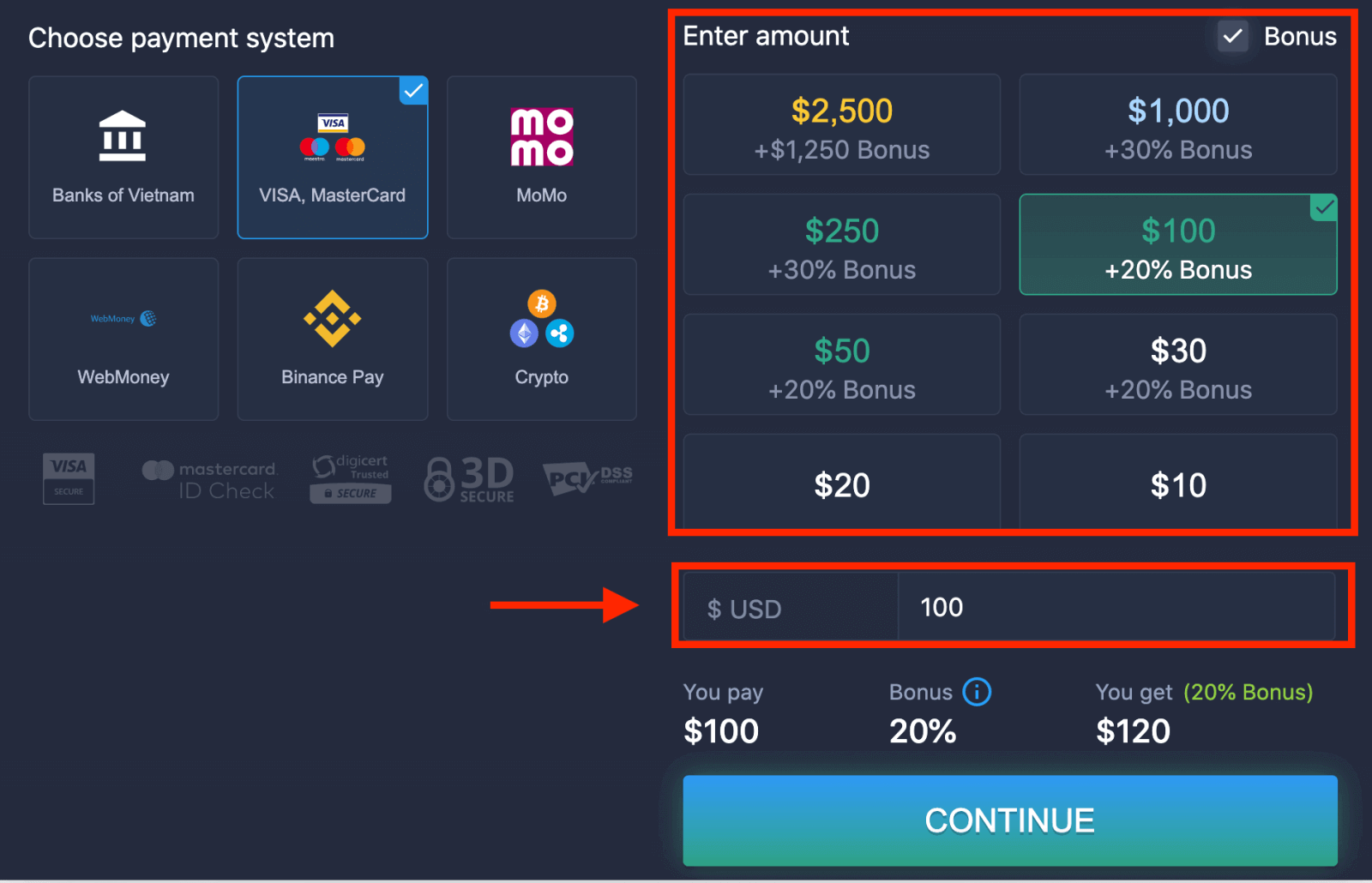
5. You may enter a deposit amount manually or select one from the list.
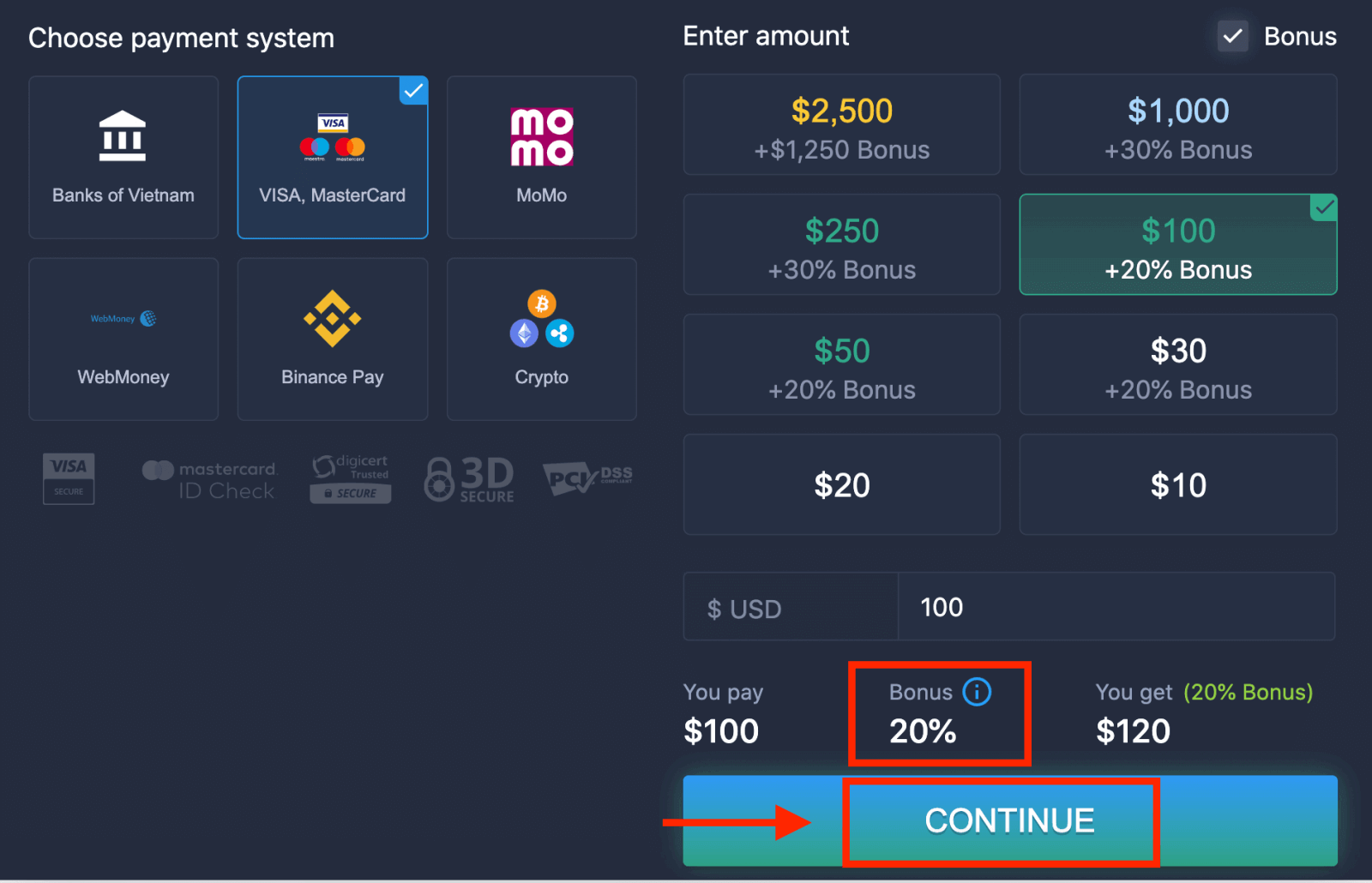
6. The system may offer you a deposit bonus; take advantage of the bonus to increase the deposit. After that, click "CONTINUE".
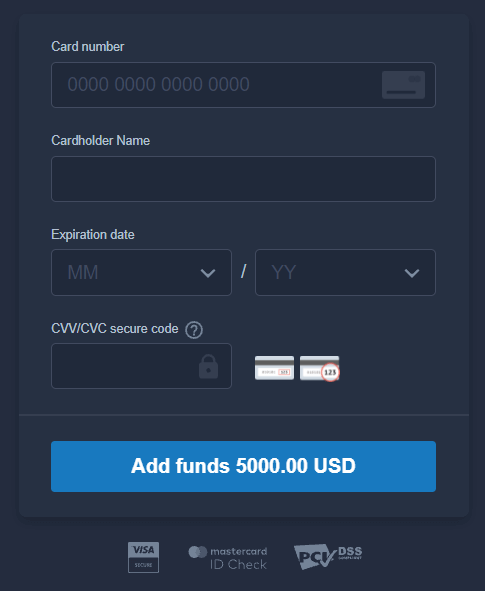
5. You will be redirected to a new page where you will be requested to enter your card number, cardholder name, and CVV.
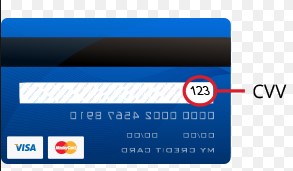
The CVV or СVС code is a 3-digit code that is used as a security element during online transactions. It is written on the signature line on the back of your card. It looks like below.
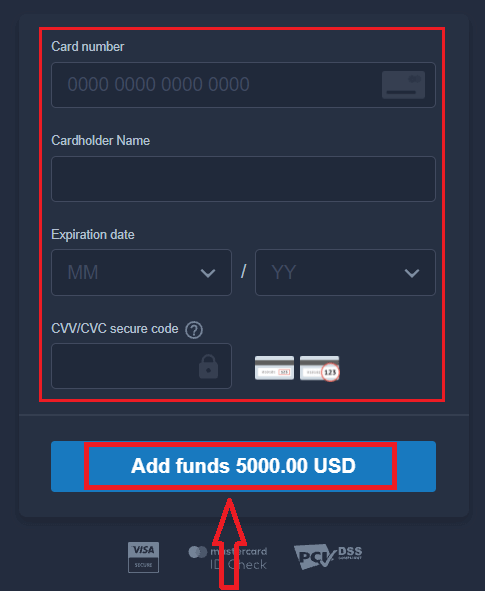
To complete the transaction, press the "Add funds ..." button.
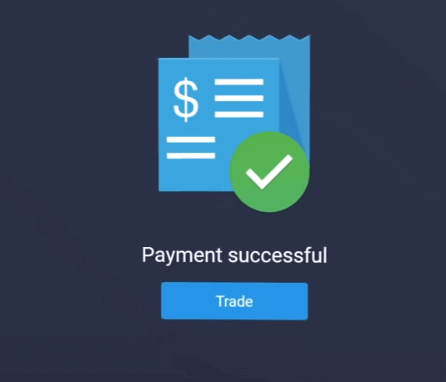
If your transaction has been completed successfully, a confirmation window will appear, and your funds will be credited to your account instantly.
Deposit on ExpertOption using Internet Banking
1. Visit the ExpertOption website or mobile app.2. Log in to your trading account.
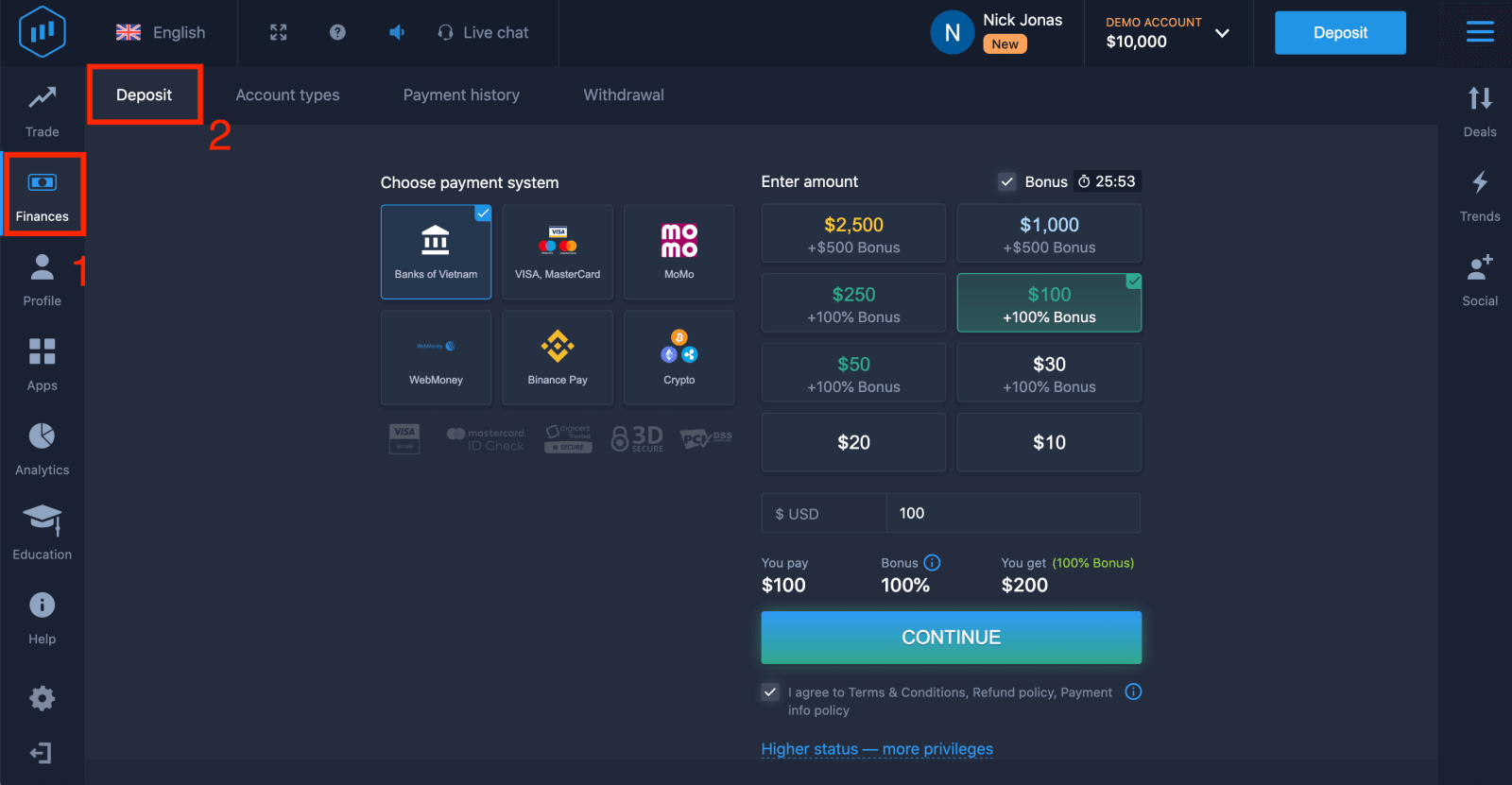
3. Click on the “Finances” on the left upper corner menu and click "Deposit".
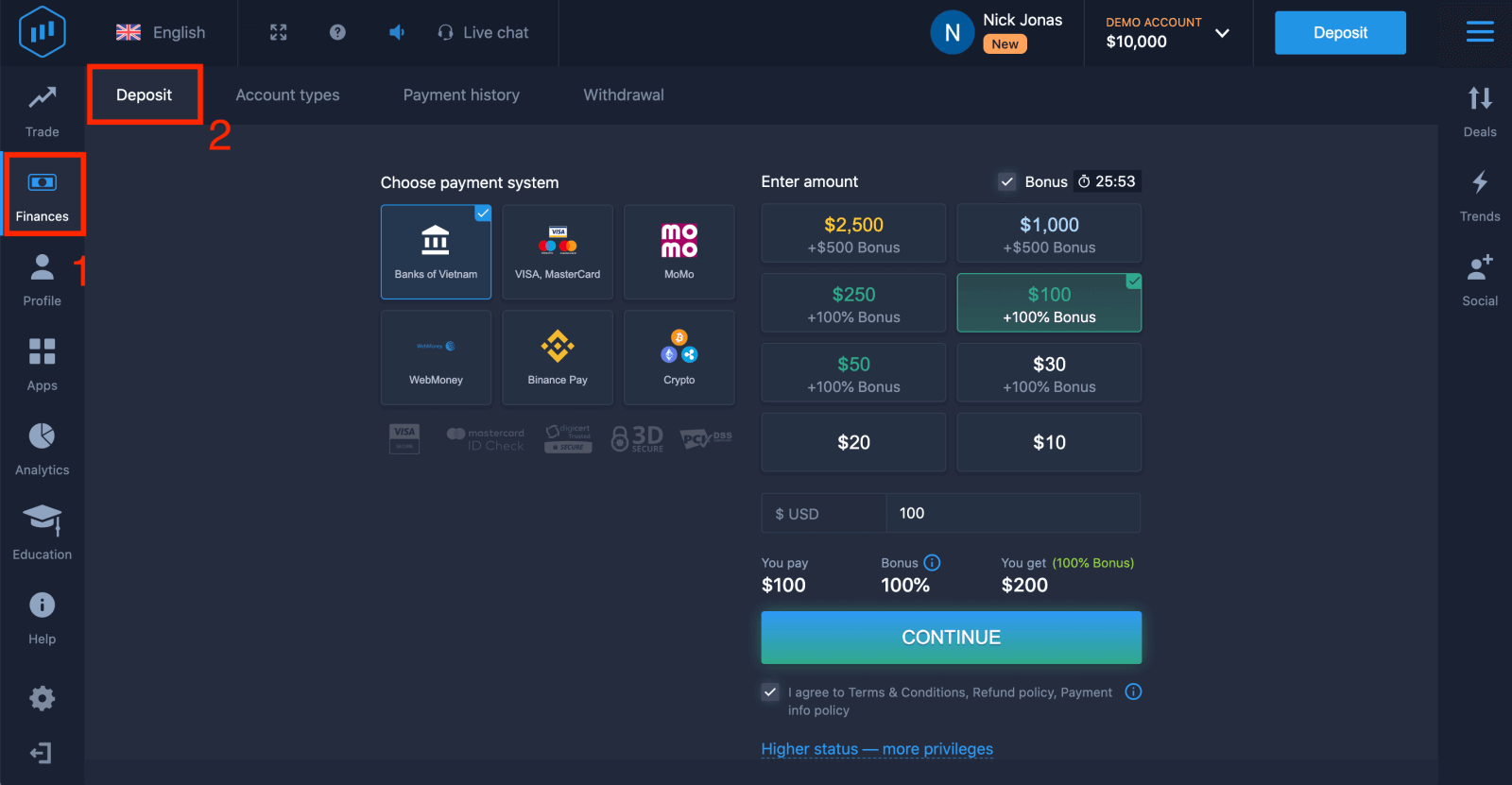
4. Select "Banks of...".
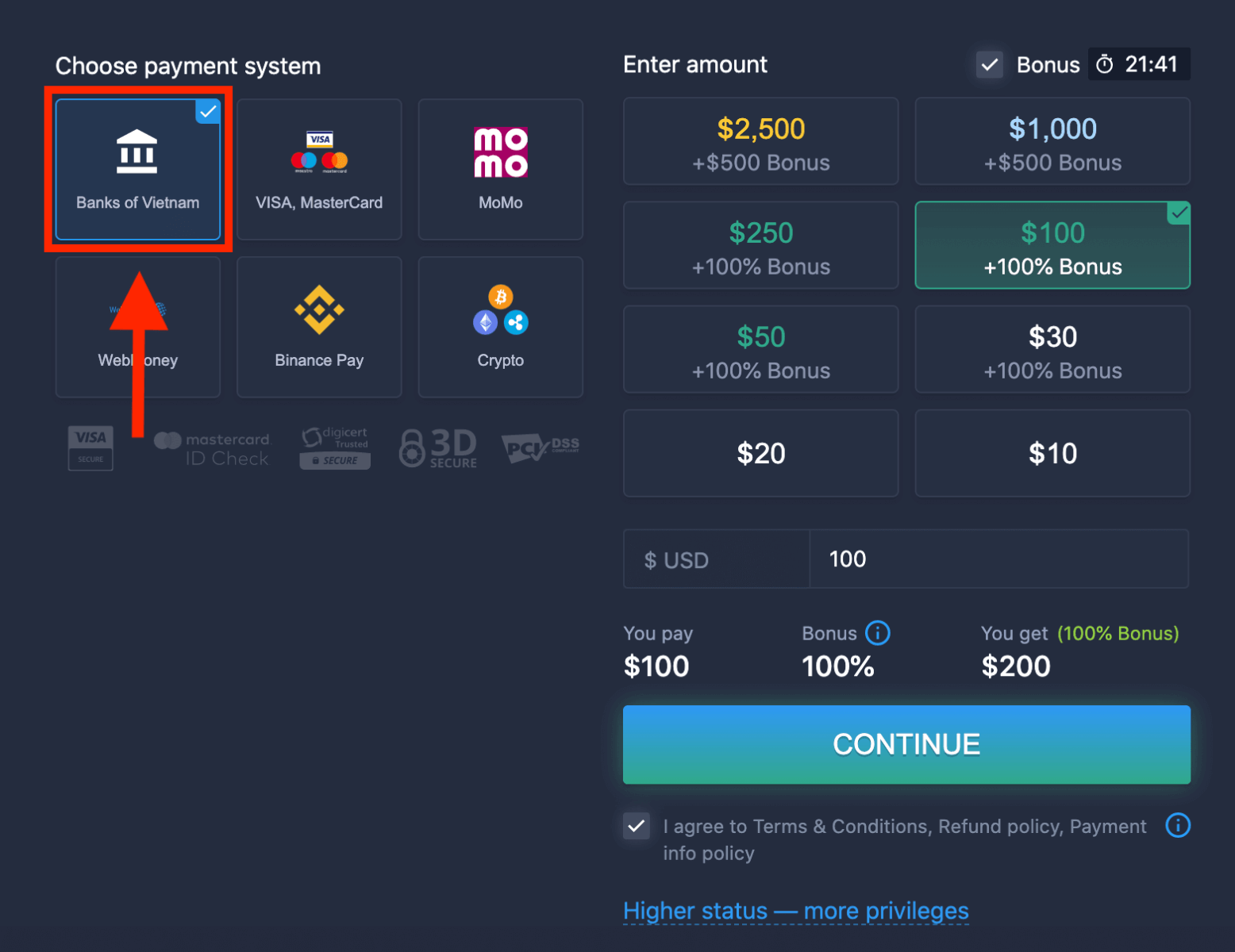
5. You may enter a deposit amount manually or select one from the list.
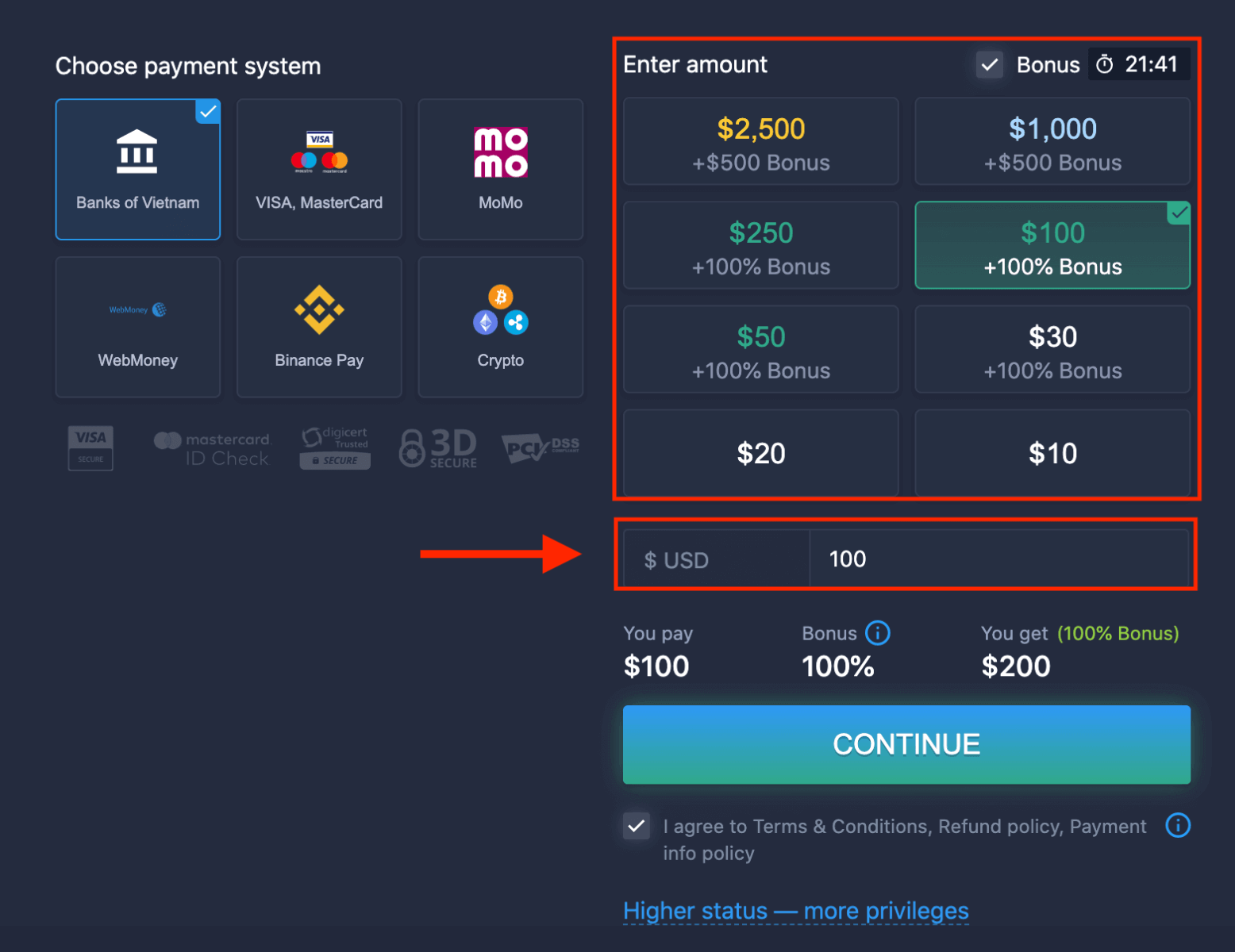
6. The system may offer you a deposit bonus; take advantage of the bonus to increase the deposit. After that, click "CONTINUE".
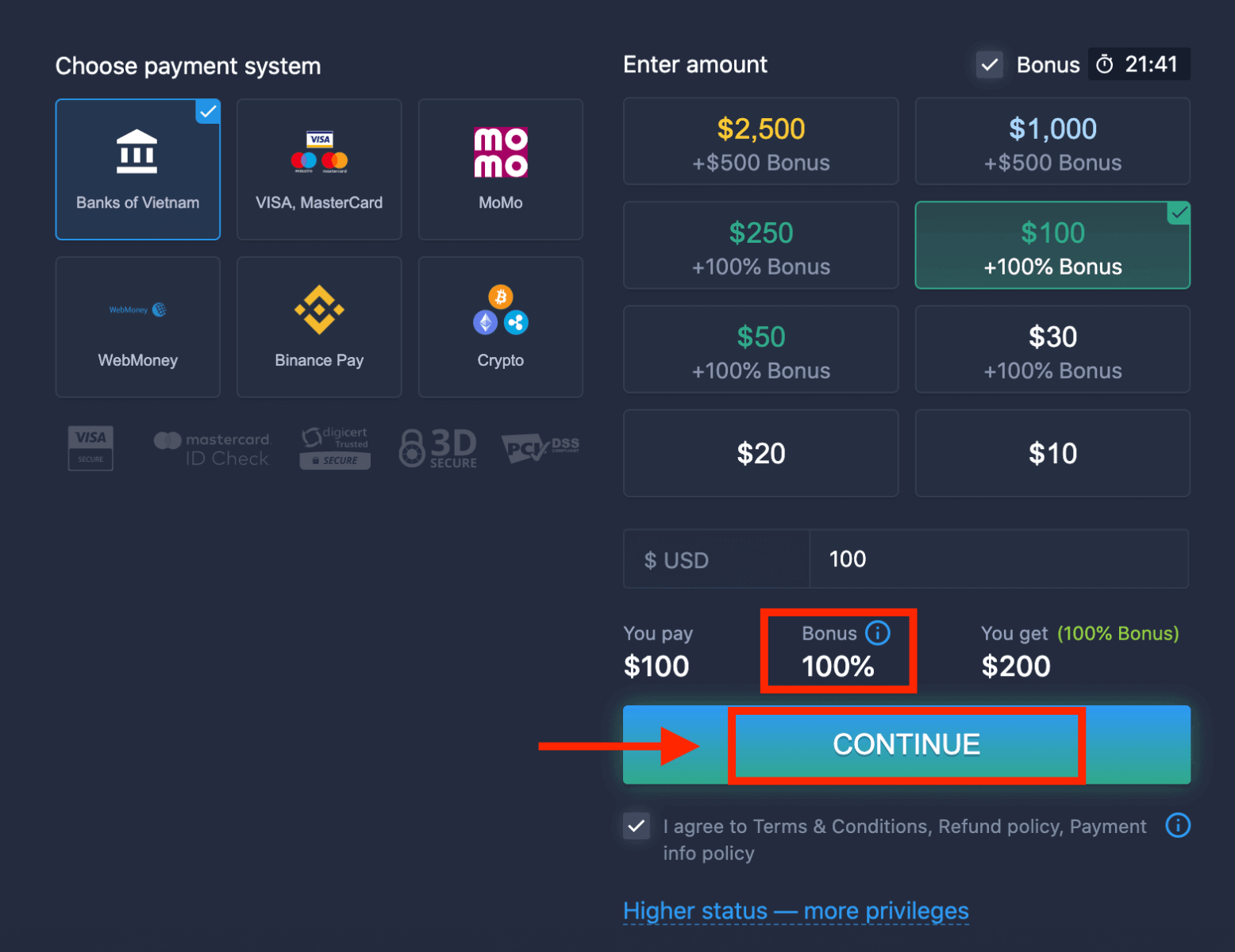
5. You will be redirected to a new page where you need to choose your bank.
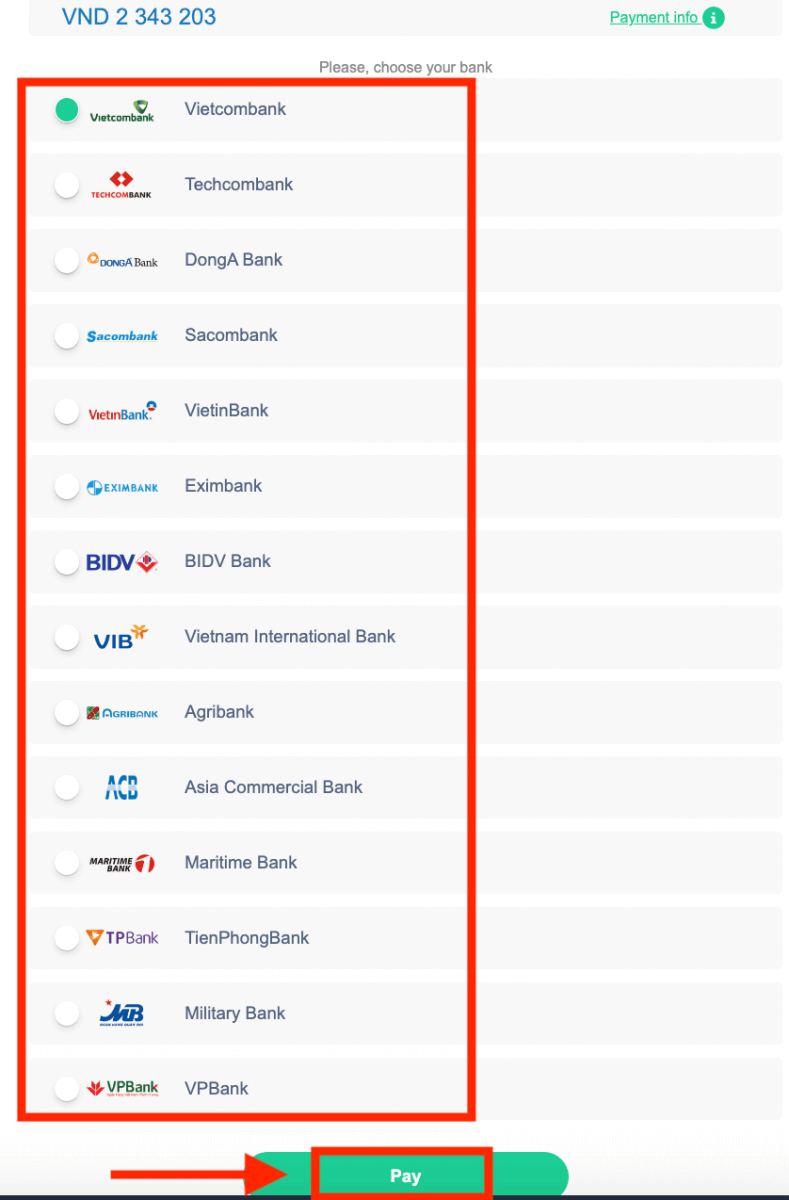
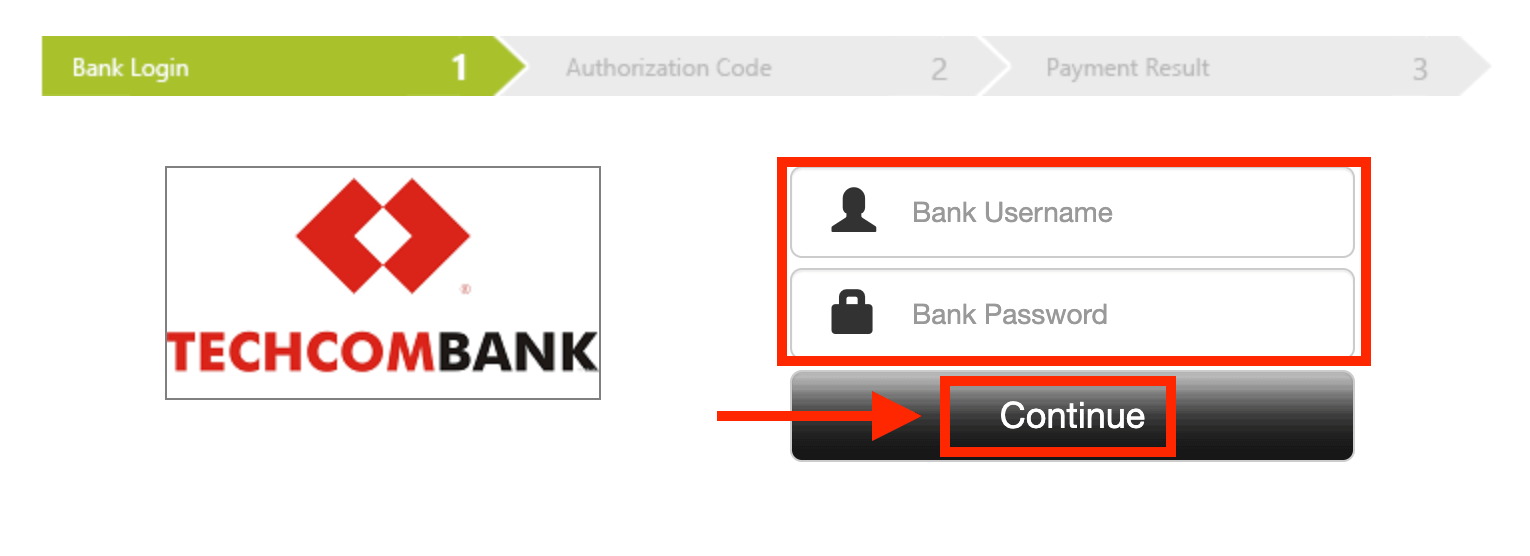
Enter the required data to deposit money to ExpertOption from your bank.
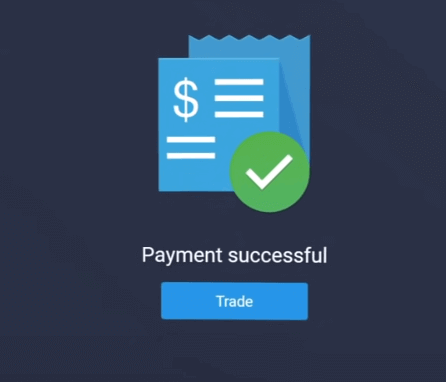
If your transaction has been completed successfully, a confirmation window will appear, and your funds will be credited to your account instantly.
Deposit on ExpertOption using E-payments
1. Visit the ExpertOption website or mobile app.2. Log in to your trading account.
3. Click on the “Finances” on the left upper corner menu and click "Deposit".
 4. Select "WebMoney" as an example.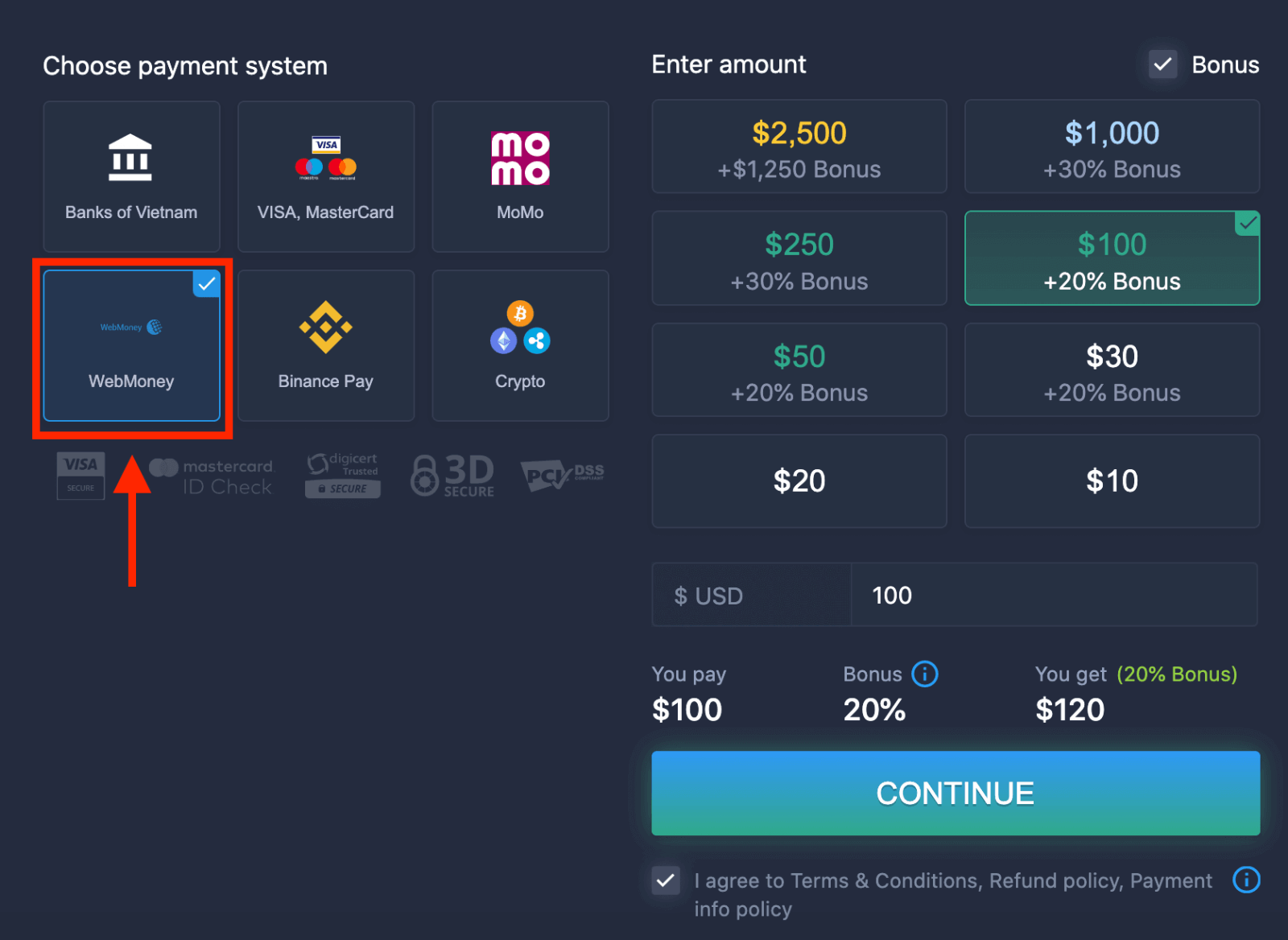
5. You may enter a deposit amount manually or select one from the list.
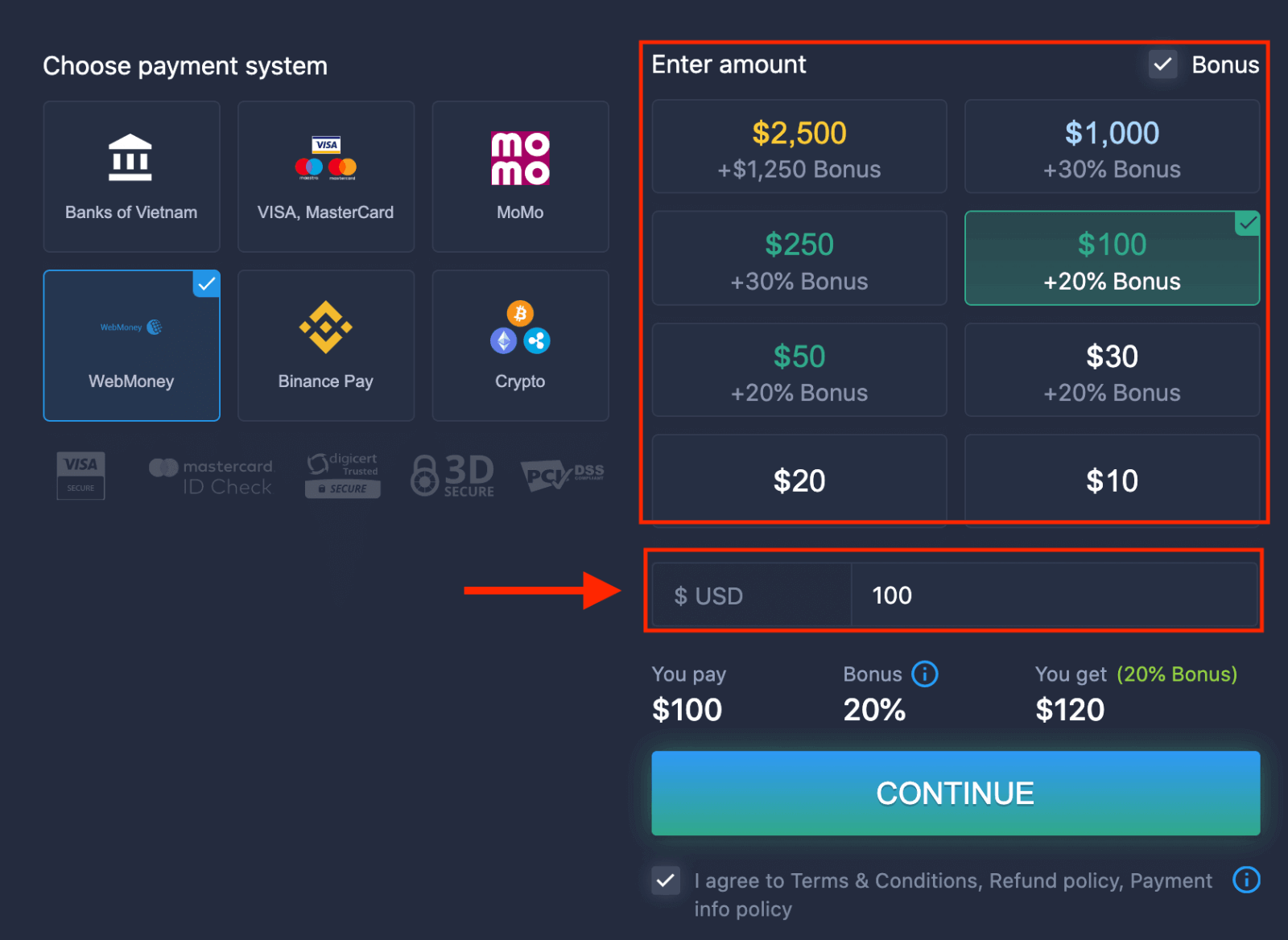
6. The system may offer you a deposit bonus; take advantage of the bonus to increase the deposit. After that, click "CONTINUE".
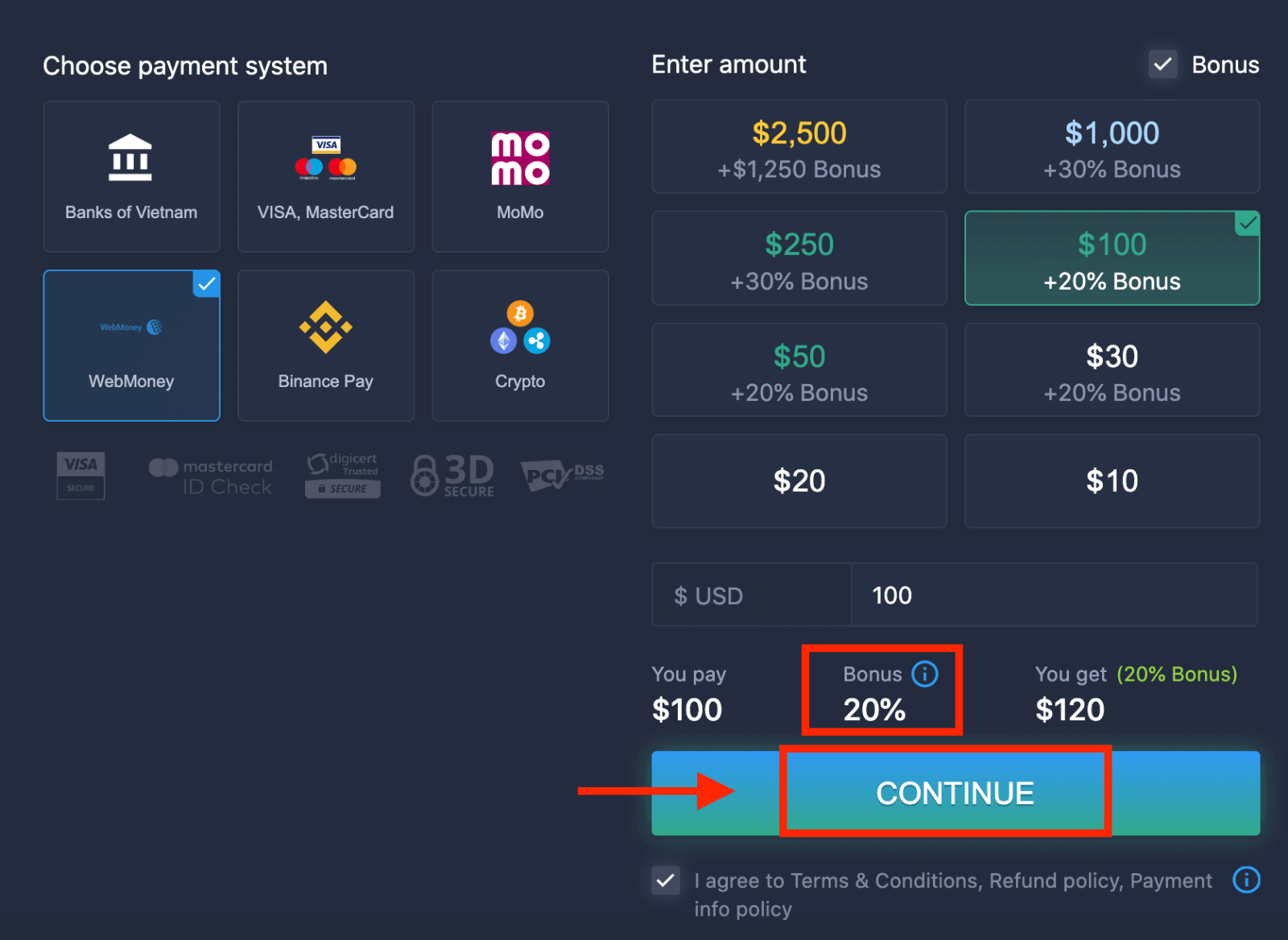 5. You will be redirected to a new page where you need to enter the required data to deposit money to ExpertOption.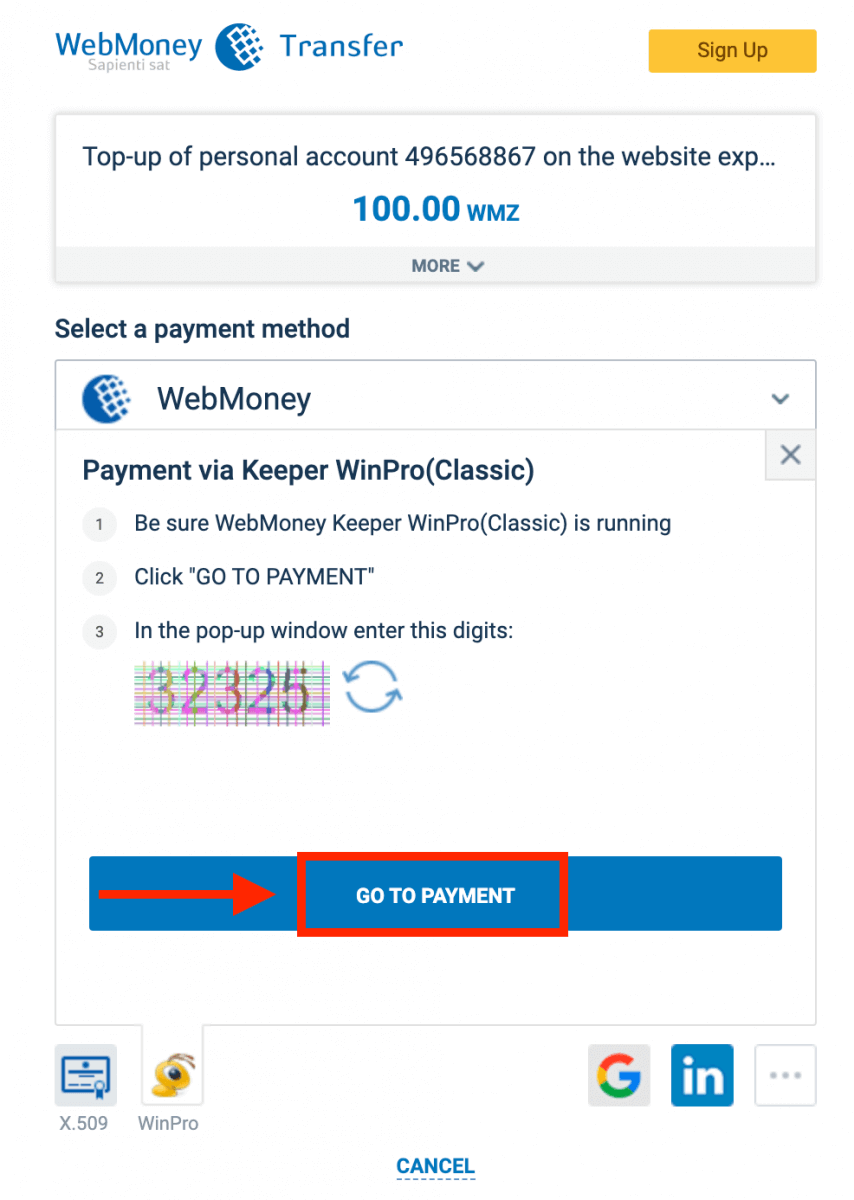
If your transaction has been completed successfully, a confirmation window will appear, and your funds will be credited to your account instantly.
Deposit on ExpertOption using Crypto
1. Visit the ExpertOption website or mobile app.2. Log in to your trading account.
3. Click on the “Finances” on the left upper corner menu and click "Deposit".
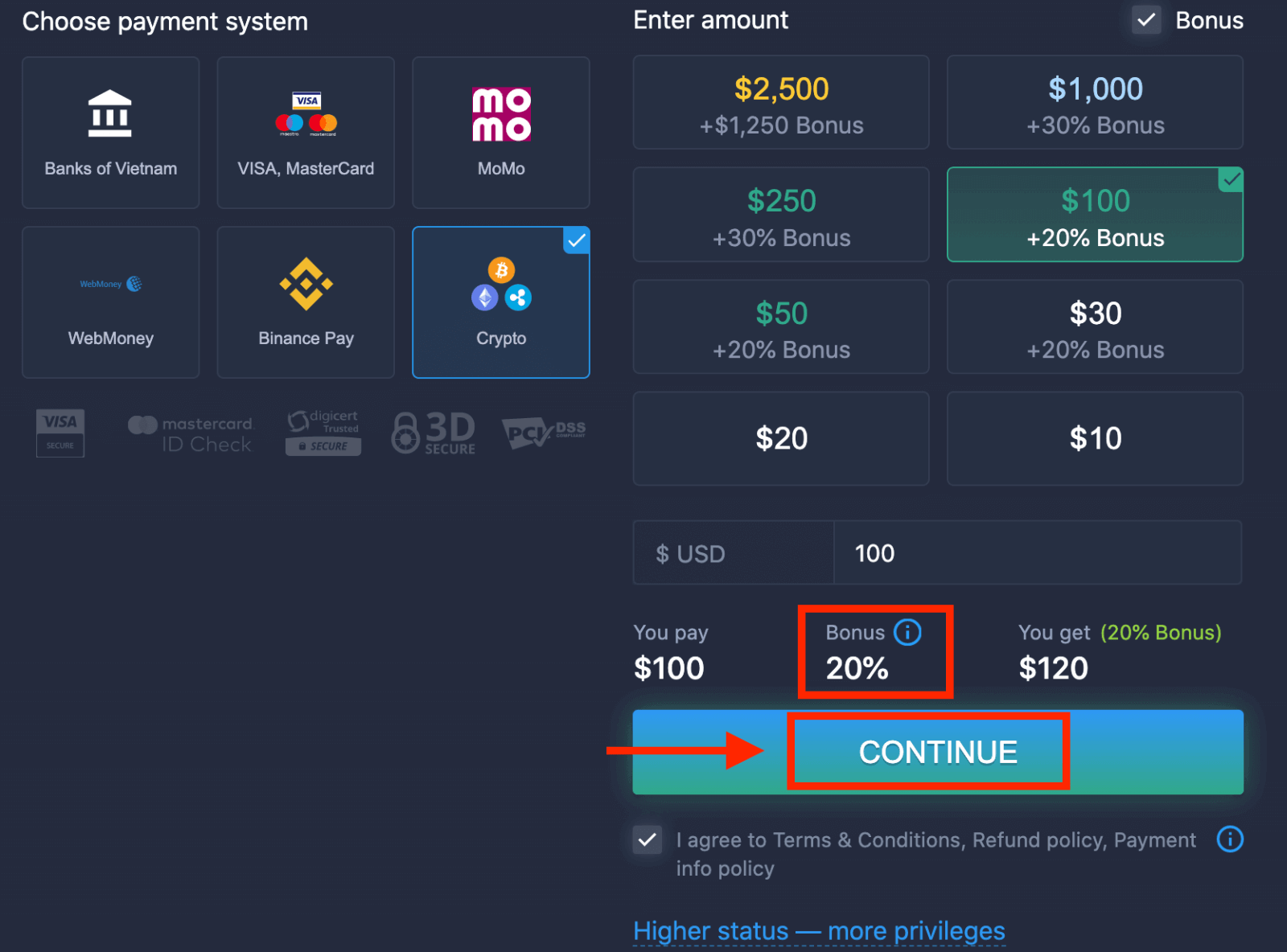
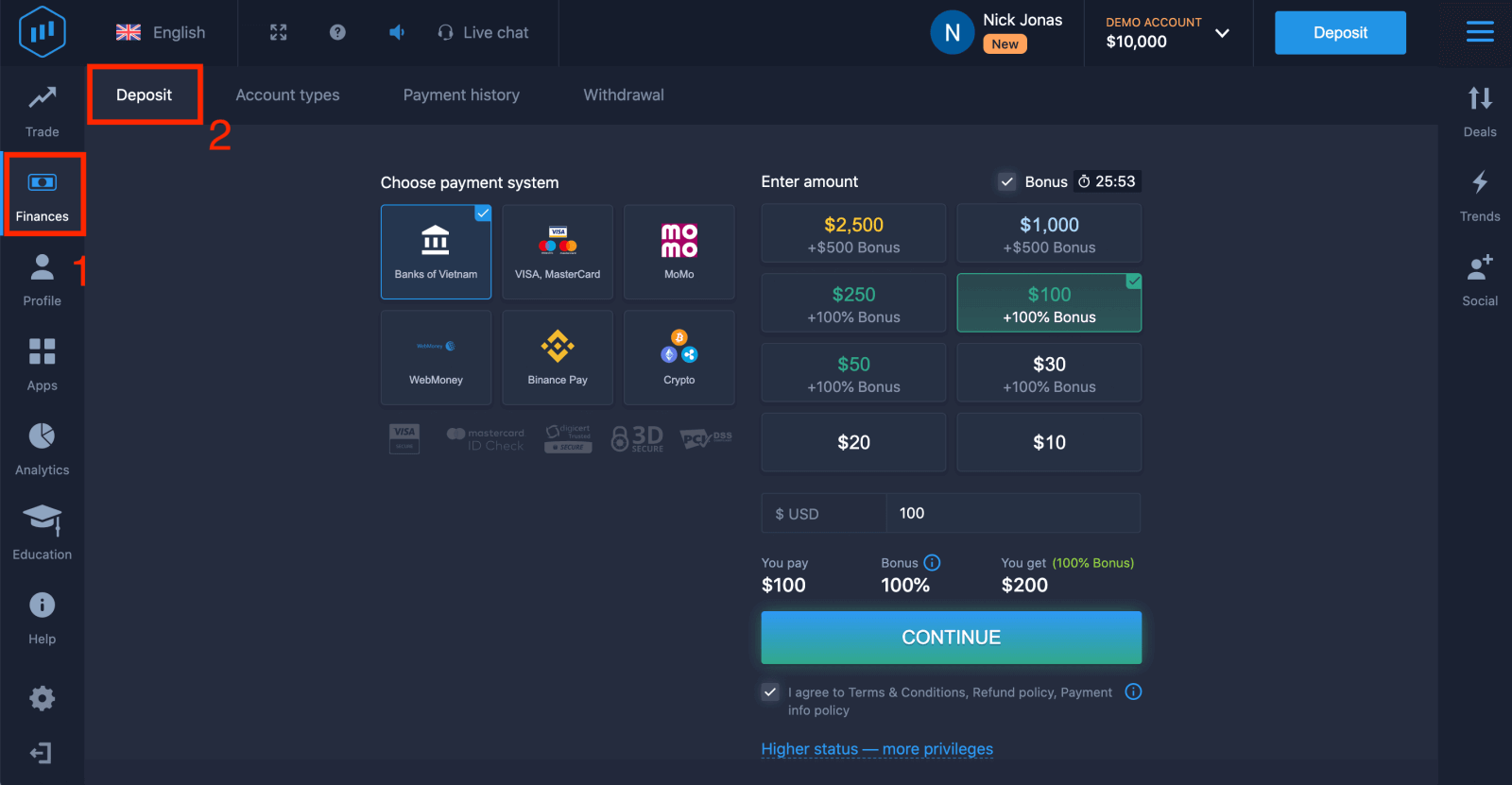 4. Select "Crypto" or "Binance Pay".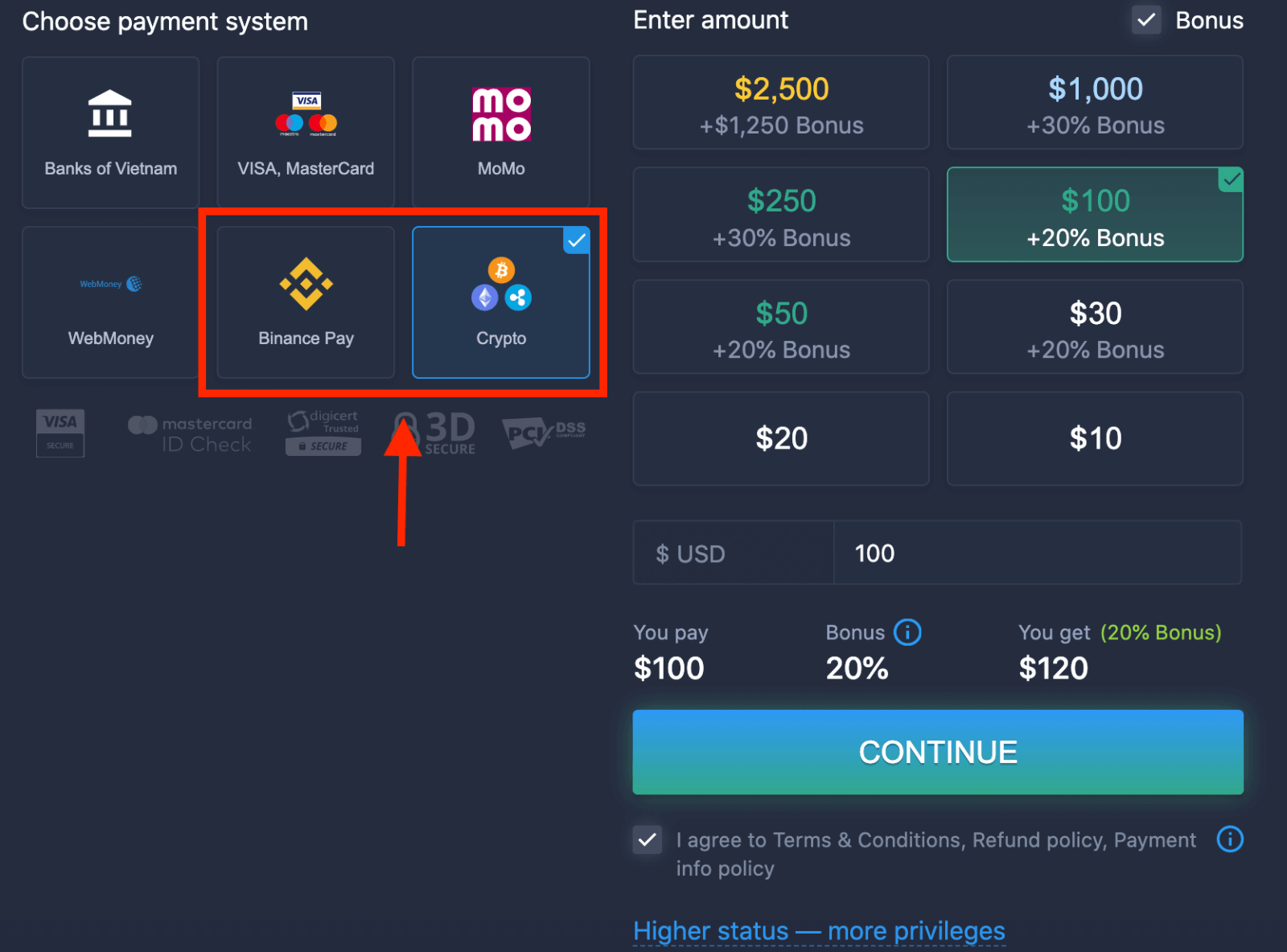
5. You may enter a deposit amount manually or select one from the list.
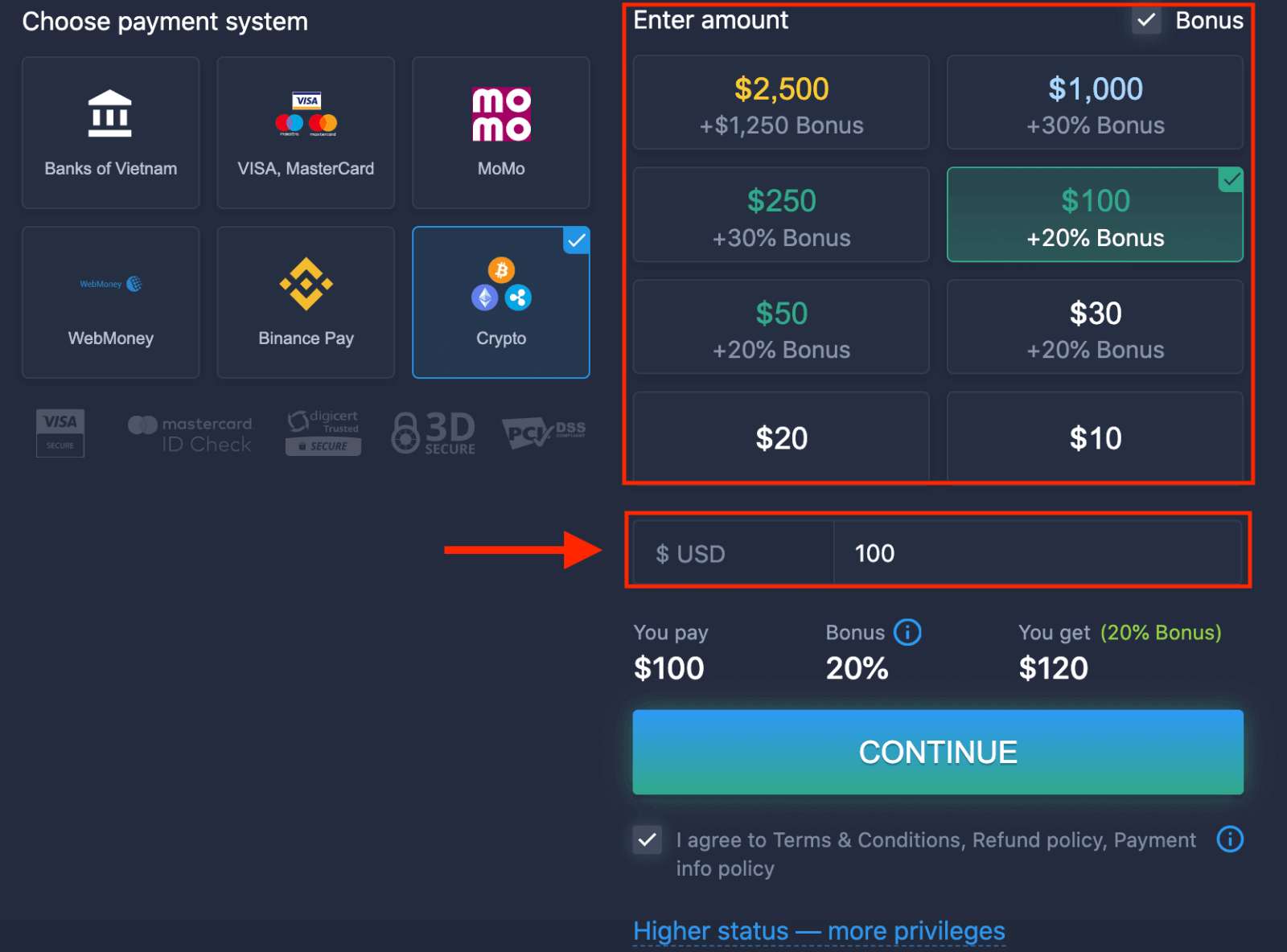
6. The system may offer you a deposit bonus; take advantage of the bonus to increase the deposit. After that, click "CONTINUE".
5. You will be redirected to a new page where you can get the address and send exactly the crypto to that address.
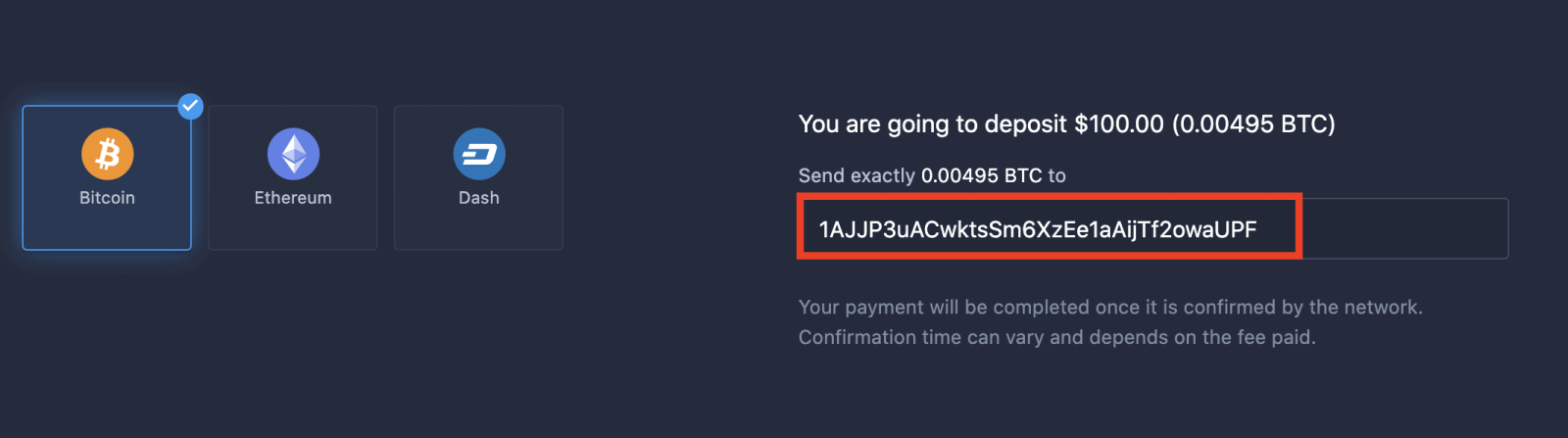
Your payment will be completed once it is confirmed by the network. Confirmation time can vary and depends on the fee paid.
Higher status — more privileges
| Micro | Basic | Silver | Gold | Platinum | Exclusive |
|
For those who prefer a light start. Upgrade to a higher status when ready |
For those who prefer a light start. Upgrade to a higher status when ready | The majority of our clients start with a Silver account. Free consultations included | Smart investments start with a Gold account. Get the most from your account with privileged features | Our best expertise and exclusive account management for serious investors | Ask your account manager for additional information |
|
from $10
|
Conclusion: Manage Your Funds Easily on ExpertOption
Depositing and withdrawing funds on ExpertOption is straightforward, designed for traders to manage their money confidently and securely. By following these clear steps, you can quickly fund your trading account to seize opportunities in the market and withdraw your profits when you are ready. ExpertOption’s transparent process ensures that you can focus on building your trading strategies while managing your funds with ease.